Migrate from On-Premises to Cloud (M365 & Google Workspace)


Organizations are shifting from on-premises to cloud based platforms to meet modern demands. On-premises platform is the backbone for enterprise but it is now considered outdated and expensive to maintain.
On-premises is too expensive and requires unnecessary cost to maintain hardware and often require resource upgrades. Additionally, businesses face limited functionality and making large-scale mailbox management difficult.
Another major issue is remote accessibility. With hybrid and remote work becoming the normal on-premises systems often fail to provide access across location and devices. Additionally, security and compliance challenges continue to increase, requiring constant monitoring, patching and upgrades. When considering cloud platforms then Microsoft 365 and Google Workspace are often top choices due to their reliability, modern features, advanced protection, automatic updates and scalability.
Cloud platforms like Microsoft 365 and Google Workspace offer enhanced flexibility, inbuilt security, automatic updates and easy scalability making them a preferred choice for modern organizations.
How to Migrate On-Premises Data to the Cloud?
- Identify all formats such as PST, EML, MBOX and more.
- Locate data sources such as desktop, servers, drives, network locations.
- Set up your cloud platforms like Microsoft 365, Google Workspace, or other platforms as needed.
- Verify domain ownership and create user accounts, and assign licenses.
- Use built-in features only for server-based migration. For local or mixed-format files, use third-party tools.
Run a test migration. - Now, start the full migration and after completion check all your content has been accurately transferred.
Why Native Migration Tools Are Not Enough?
- Native tools only support Exchange or IMAP mailboxes and do not support all file formats.
- Migrating archived data stored on desktop or from network drives is often impossible using native tools.
- Most built-in tools require PowerShell or advanced expertise and make it unreliable for general users.
- Cloud environments offer limited importing facilities that slow down processes and are not reliable for large organizations.
- Managing multiple server migrations, local archives and user machines is challenging without using a centralized migration platform.
How to Migrate from On-Premises to Cloud?
Once users finalize their cloud platform they need a reliable migration solution. According to expert suggestions, Office 365 Importer is the perfect tool based on your requirement as it helps you to migrate PST, MSG, EML, MBOX data to Microsoft 365, Google Workspace. For other platforms or formats, you can contact our support team for a specified solution based on your requirements.
- Download and run On-Premises to Cloud Migration Software on your system.
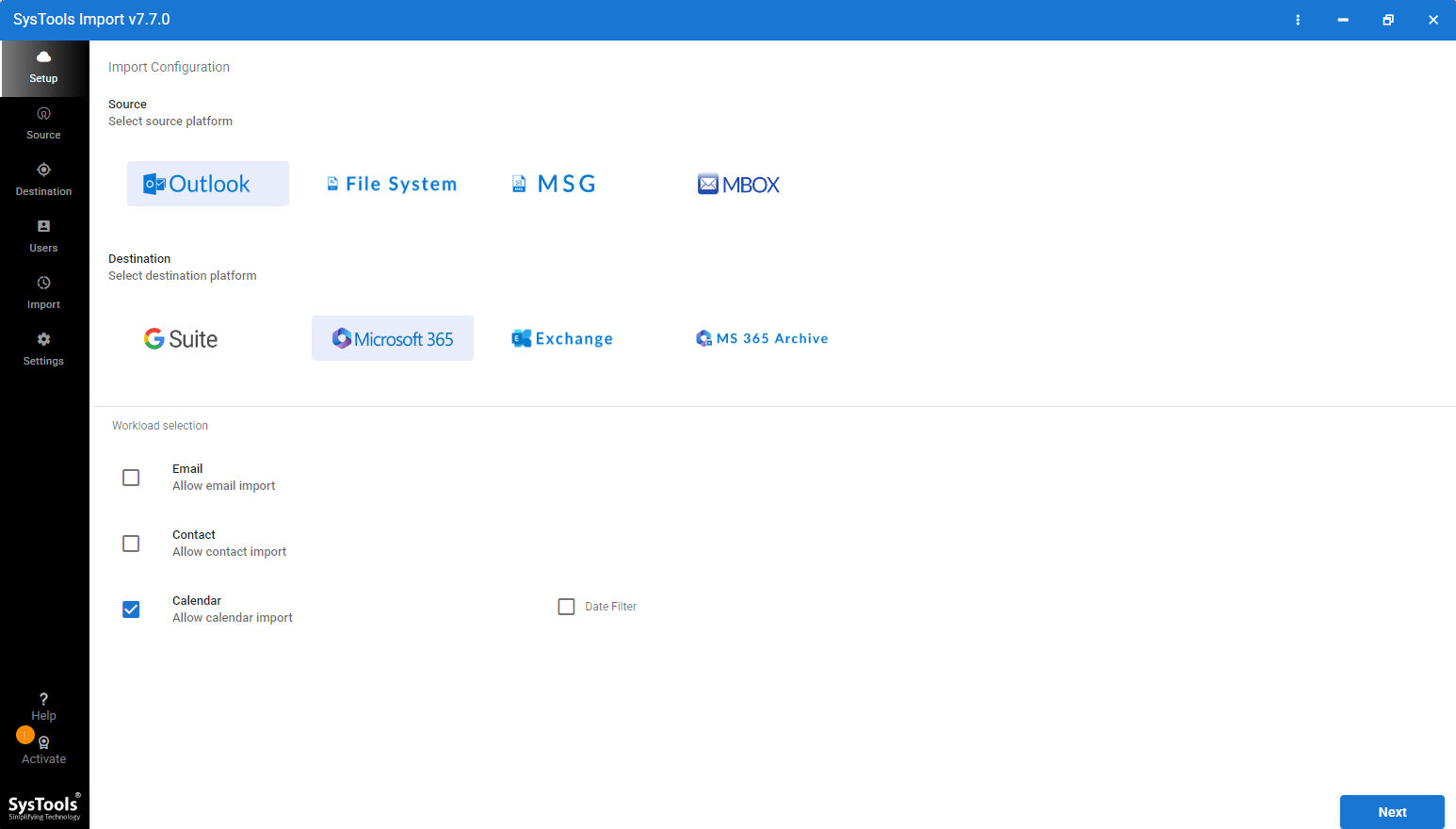
- Select your source formats and targeted cloud platform.
- Browse your On-Premises data and enter your Cloud login credentials.
- Click Fetch Users and select the targeted mailbox.
- Set the number of concurrent users based on your system configuration. High-performance systems can migrate up to 10 users at a time.
- Click on Start Import to migrate from On-Premises to Cloud Server.
Core features of On-Premises to Cloud Migration Tool
- This tool is designed for small to large businesses and supports large-scale mailbox data without limits.
- It also offers date filters to migrate only selected data according to specified dates.
- This software preserves metadata and attachments during migration.
- It will automatically map source data with destination mailboxes reducing the chance of human errors.
- You can migrate multiple mailboxes at once to save time and effort.
Common Migration Scenarios
- PST to Microsoft 365 Migration: This is fully reliable for Microsoft Outlook to easily migrate its data to Microsoft 365.
- MBOX to Google Workspace Migration: If you want to migrate from an MBOX supported platform such as Apple Mail, or others to Google Workspace.
- EML to Microsoft 365 Migration: If you have exported EML files from Windows Live Mail, eM Client, Thunderbird or any other platform and need to be imported into Microsoft Exchange Online or Microsoft 365.
- Multiple-User Archive Migration to Cloud: It offers to migrate archived mailbox and distributed data from desktops, network drives to centralized cloud platforms
Frequently Raised Queries
1. How do I migrate multiple email formats to the cloud?
To migrate multiple email formats such as PST, MBOX, EML and MSG, use the recommended tool. Which preserves all data including attachments and formatting and it can migrate directly without performing manual complex steps or risk of data loss.
2. Can I migrate PST and MBOX files together?
Yes, PST and MBOX files can be migrated but for this you need a specialized tool as we recommended. Such tools allow you to process multiple files in bulk, preserve email structure and map multiple user accounts for seamless transfer to cloud platforms i.e., On-premises to Cloud Migration Tool.
4. What is the safest way to Migrate Large Email Data?
To migrate large email data safely, use a reliable migration tool as we recommend it supports validation, incremental migration and reporting. It preserves attributes, avoids file corruptions and can migrate large mailboxes to multiple users in the cloud.
Conclusion
In this tutorial, we have explained the complete concept of migrating from On-Premises to Cloud. We have shared both manual approach or Automated tool. Manual migration is possible If your native tool supports your needs. For accurate large-scale migration and preserving mailbox structure then you can go with the migration tool as it is known for accuracy, reliable for large-scale migration and compatible with both Mac and Windows operating system.