How to Import ICS to Office 365? Easy Tutorial


Do you have multiple ICS calendar files & want to import in your Office 365 account? If yes, then this blog provide direct solution to import ICS to Office 365 account. A pro solution helps users switch calendars from Google, Apple, Thunderbird, or any other calendar application to Office 365. ICS, aka iCalendar also used in sharing & storing calendar events. On the other side, Microsoft Office 365 can’t directly import ICS calendars. In this article, users learn easy techniques to import ICS calendars to Microsoft Office 365.
Why Import ICS to Office 365 Account?
An ICS file is also called iCalendar file. This file stores calendar-related information such as meetings, appointments, reminders, recurring events, event descriptions, organizers, attendees, & time zone settings. ICS is universal calendar format that is supported by most of the popular email & calendar applications. Let’s learn common reasons to import ICS files into Microsoft Office 365 account.
- Users want to store calendar events in one place that help them manage them in Office 365 calendar.
- Office 365 allows users to access their calendars from desktops, laptops, smartphones, & tablets.
- MS Office easily synchronized calendars across all connected devices.
- With Microsoft Office 365, calendars can be shared. Users can easily plan meetings & check on the availability of colleagues.
- Users also get better productivity once they import ICS calendars into Office 365 accounts.
- Office 365 ensures important events are stored securely in cloud.
- Users can directly create team meetings, send invitations, & manage responses within Office 365.
- Once ICS is imported into Office 365, they can easily edit, search, categorize, & organize compared to maintaining multiple ICS files.
- ICS files are static & become difficult to manage over time.
Manual Method to Import ICS to Office 365
If you are importing few files from ICS calendars to Office 365, then you can try free method. Follow these steps
Step 1: Import ICS Calendars to Office 365 by Outlook for the Web
- Sign in to your Office 365 account.
- Open Outlook.
- Switch to Calendar view.
- In the left pane, click Add calendar.
- Select Upload from file.
- Once done, browse & choose ICS file from your computer.
- Select calendar where you want to import all events
- Create a new calendar, if you want
- Click Import.
- Wait until process is done.
- Your calendar events will now appear in Office 365.
Step 2: Transfer ICS Calendar to Office 365 using Desktop Outlook
- Firstly, Open Microsoft Outlook.
- Click File & select “Open & Export” option.
- Tap on the “Import/Export” option.
- If Import/Export Wizard does not show, then simply click on “Go to File.”
- Once selected, go with “Open & Export > Open Calendar” option.
- Browse to ICS file & select it.
- Choose one of following options: Open as New – Opens calendar separately.
- Import – Adds events to existing Office 365 calendar.
- Confirm import.
- Now wait to finish the process in Outlook.
Pro & Cons of Free Method
| Pros | Cons |
| 100% free of cost | Bulk ICS to O365 Migration is not possible. |
| No additional software required | Time consuming |
| Best for individual users. | Need to repeat process again and again. |
| Preserve every calendar’s details | High chances of human error |
| Free tricks work with Outlook Web & Desktop | Limited automation process. |
| Best for occasionally importing ICS files | Not good for Enterprise Migrations. |
Expert Solution to Import ICS Files to Office 365 in Bulk
Users who wish to minimize risks related to ICS calendars & want straightforward ICS migration should try Office 365 Importer Tool. This application direct import ICS to Office 365 account without any human error. This automated solution is best suited to migrate batch of ICS calendars into Office 365 without any limitations. Users don’t need to repeat process. It import calendar files directly into Microsoft 365 while preserving original event details. Grab free trial edition today to learn more about software.
Steps to Use Automated Solution
- Download ICS to Office 365 Migration Tool.
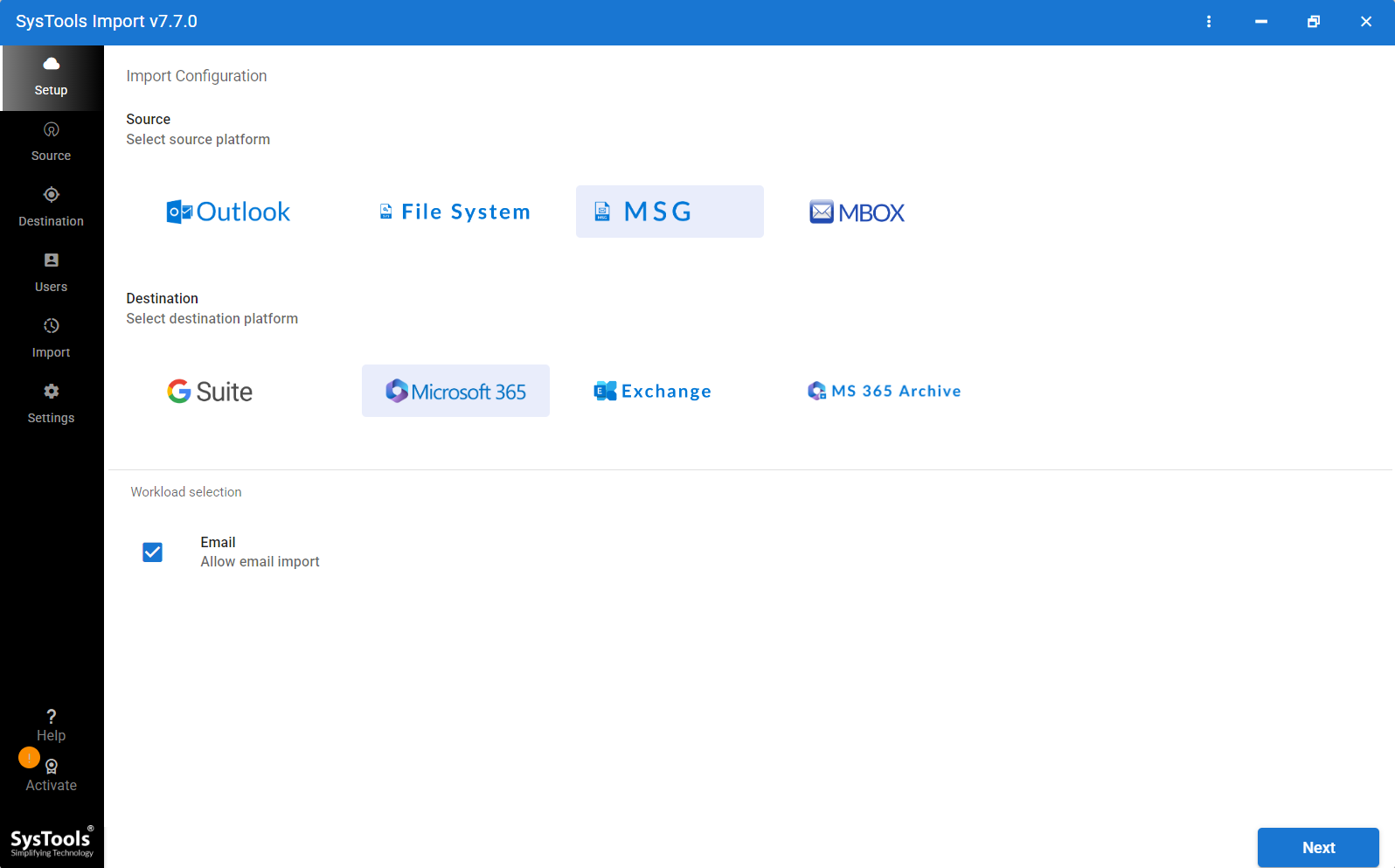
- Once downloaded, select “File System” option.
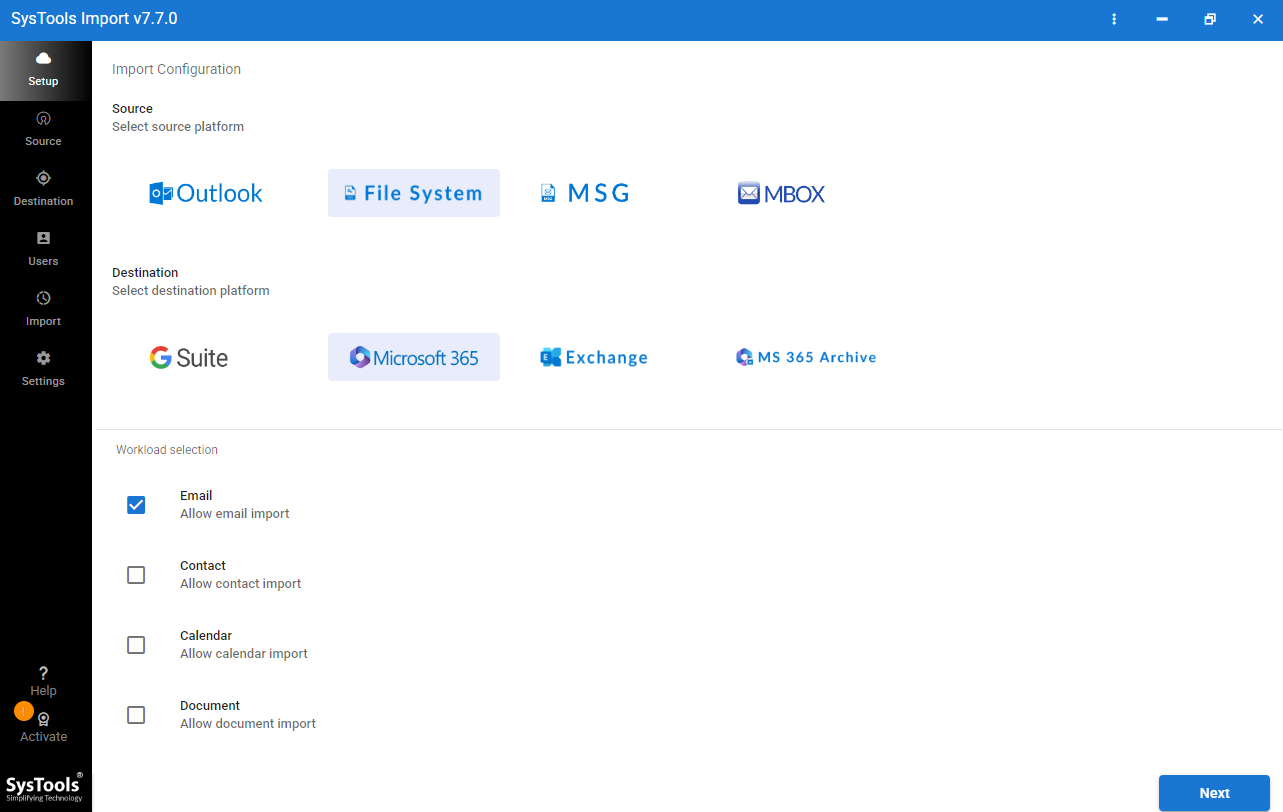
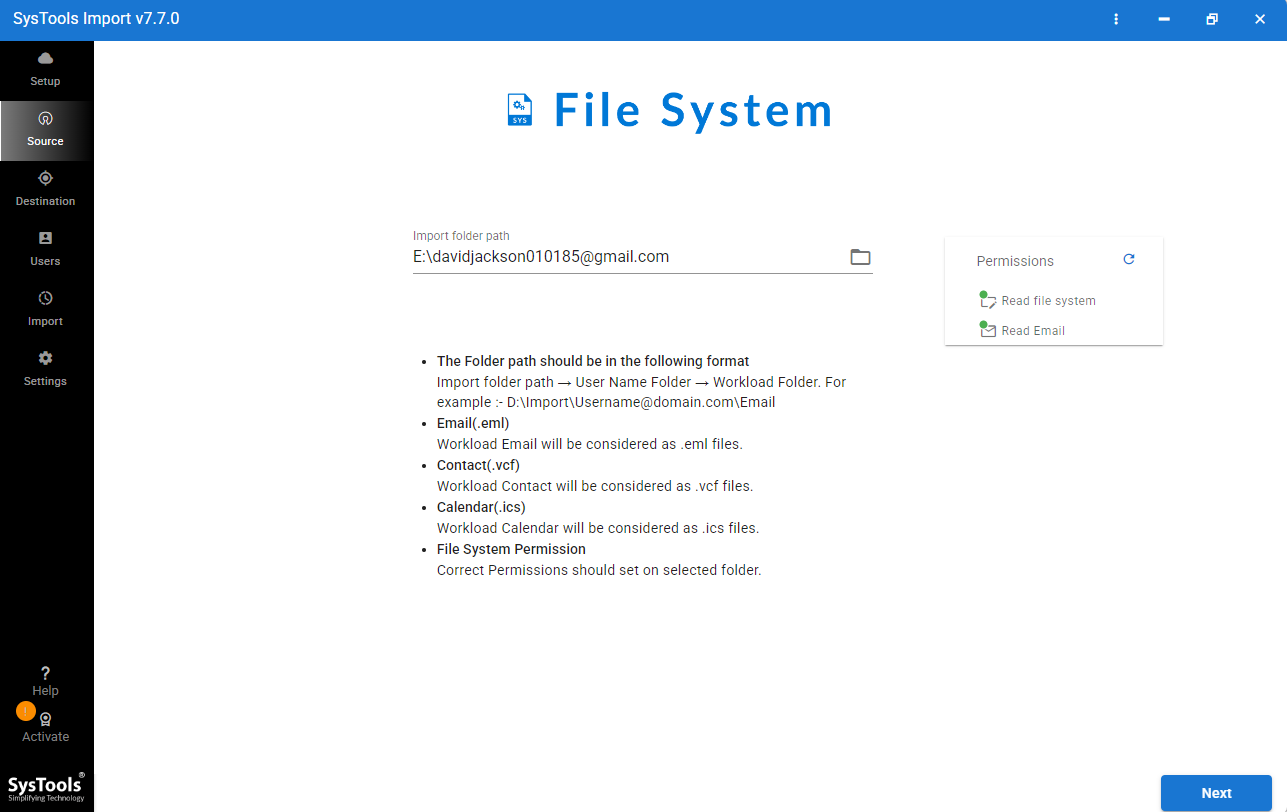
- Now Tick “Calendar” option & load ICS files in software.
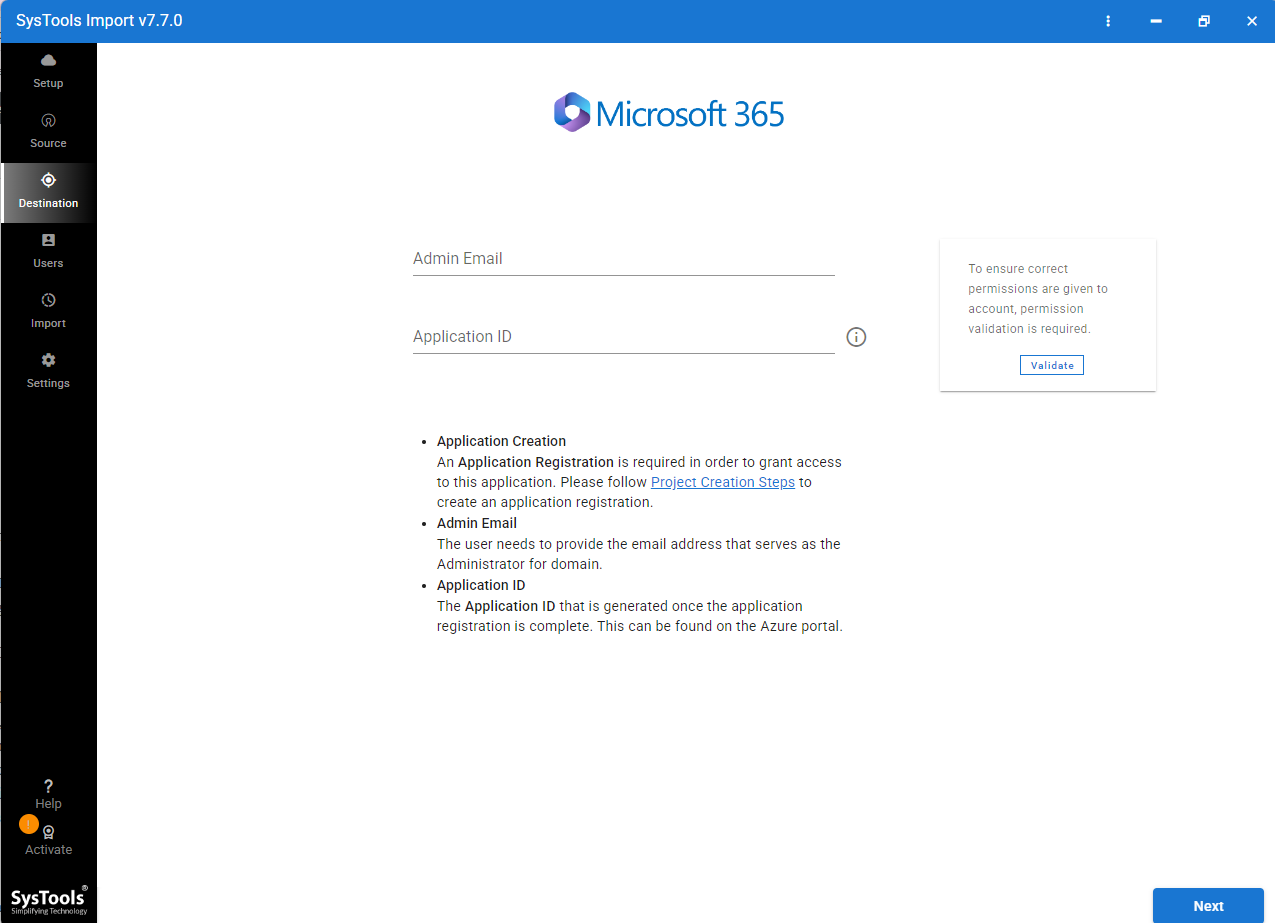
- Log in with Office 365 credentials to connect with mailbox.
- Lastly, start migration from ICS to Office 365.
Primary Key Feature in Expert Recommended Solution
- Bulk Support: Users directly import batches of calendar files into Microsoft Office 365 account without any data size limitations. Users can transfer selective or bulk ICS files into Office 365.
- Easy Migration: There are users didn’t require technical knowledge to import ICS files into Microsoft Office 365. Just download software, select files, & login Office 365 account to migrate from ICS to Office 365.
- Windows/macOS Compatible: This tool is suitable for all OS versions of Windows & Mac. There are users didn’t require any special OS to import ICS calendars into MS Office.
- Maintain Structure: No data structure will losed & alter during migration. This tool provides same structure of ICS file as they save in local system.
- User-Friendly Interface: Using this application didn’t require any IT knowledge. A professional background & non-IT person can easily use this application to import ICS calendar files into Microsoft Office 365 account.
Mostly Asked Question
What are ICS Calendars & How to Move in Office 365?
iCalendar file often saves calendar events, appointments, reminders, & plans. If users want effortless solution, then they can try professional software that provides bulk migration from ICS to Office 365.
How to Freely Import ICS Files in Microsoft Office 365?
If you want to freely import ICS calendar files into Office 365, then follow these steps.
- Sign in to MS Office account.
- Open Outlook calendars & choose Add Calendar > Upload from File option.
- Once done, select ICS file & click import option.
Which Method is Best for ICS to Microsoft Office 365 Migration?
If you have small number of ICS calendars, then free method is good. They didn’t charge any cost to import ICS files into MS Office 365 account. Nevertheless, if you have multiple ICS calendar folders & files, then choose expert solution that provides batch import process.
Writer Pen Last Words
Moving ICS calendars into Office 365 is most common need of today’s users. Many people switch from Google, Apple, Thunderbird calendars to Microsoft Office 365 because of centralized access. MS Office provides free option to import single ICS files, but this method is not good when you have thousands or even hundreds of ICS calendars. If you want to convert ICS calendars in bulk without repeating process again and again, then you should choose expert method. This method provides direct & safe migration without any manual hassle. It also preserves import calendar details & simplifies process. Choose right method for your needs. Verify all ICS events & appointments are accessible in Outlook. Users also avoid unnecessary delays or data loss.