How to Import MBOX to Office 365? Easy Methods Explained


In this guide, we will show you how to import MBOX to Office 365 manually as well as using a direct professional solution. Since Microsoft 365 does not natively support MBOX files due to which many users struggle to move their mailbox data to Office 365 accounts. However, through this article we have got you covered and explained each method in a proper step-by-step way so that you can select the best method as per your needs.
Reasons to Import MBOX to Office 365
Before starting further, let’s read why users look to migrate MBOX files to Microsoft 365 and what benefits it provides.
- Office 365 is a modern and more advanced email client as compared to other MBOX-based applications.
- If you migrate MBOX files to an Office 365 account then you can easily manage old data in an organized way.
- Office 365 offers a seamless integration with Microsoft 365 tools like Outlook, Teams, OneDrive, and SharePoint that helps businesses to boost their productivity and team workflow.
- Microsoft 365 supports built-in security features like anti-spam protection, encryption and compliance controls for better email management.
After having a full detailed understanding, let’s move to the free manual procedure to import MBOX to Microsoft 365.
How to Migrate MBOX to Office 365 Manually?
Here we have explained two manual ways to perform MBOX to Office 365 migration on both Windows and Mac systems. Since Office 365 does not offer any direct way so you will require Thunderbird and Apple Mail installation before proceeding with the process.
Method 1 – For Windows Users
This method has 3 phases to import MBOX to Office 365. Follow them as guided.
Phase1- Install the Add-on
- Open Thunderbird.
- Go to Menu > Add-ons and Themes.
- Search ImportExportToolsNG and click on Add to Thunderbird option.
- Restart Thunderbird.
Phase 2- Configure Office 365 account
- Now, navigate to Menu > New Account > Email.
- Enter a username and Office 365 email address.
- Choose the IMAP option and verify your account by following the instructions.
Phase3- Import MBOX to Office 365
- You will see a Local folders section under your configured email ID in Thunderbird.
- Simply right-click > New Folder. Enter a folder name.
- Next, right-click on the newly created folder > select ImportExportTools NG option.
- Choose Import mbox Files > All mbox files from directory (with sbd structure).
- Now select all your MBOX files to import into a Thunderbird account.
- After that, easily drag and drop those folders in your Office 365 account.
This way you can easily transfer MBOX files to Office 365 using a Thunderbird desktop email client.
Method 2- Process to Migrate MBOX to Office 365 For Mac Users
If you are a Mac user, then follow the steps mentioned below to import MBOX to Office 365. Let’s start.
Phase1- Import MBOX files
- Open Apple Mail.
- Go to File > Import Mailboxes > Files in mbox format.
- Select your MBOX files that you want to migrate.
- Further, your files will be saved in a new folder under the On My Mac section.
Phase2- MBOX to Office 365 migration
- Go to Mail > Add Account. Select Other mail account option.
- Now, enter your Office 365 account email address and password.
- Click on Sign in to continue.
- After successfully adding an account in Apple Mail.
- Select the folder in which you have imported MBOX files.
- Drag and drop it into the Office 365 account.
That’s it, you have imported your MBOX files in an Office 365 account.
Limitations of Manual Methods
While these methods seem to be easy, they hold multiple drawbacks that you should know. We have stated some of them below:
- Both methods are time-consuming and require a third party email client.
- Manually configuring Office 365 accounts is challenging, especially for non-technical users.
- These methods are not ideal for enterprise level users who want their emails to be maintained in the same structure.
- They are dependent upon your internet connection speed, if slow then the migration can become slow.
- Users need to drag and drop each MBOX file one-by-one.
Expert-Recommended Solution to Import MBOX files to Office 365 Directly
For users who want a smooth and quick migration process, trust on the Office 365 Importer. It is a professionally tested solution with a user-friendly interface that allows all types of users to directly import MBOX to Office 365 without losing a single bit of data. The tool has the ability to import single as well as batch MBOX files directly at once while keeping all the email properties intact.
Simply download the MBOX to Office 365 migration tool and try its free demo version available to test the software before buying it.
Working Steps of the MBOX to Office 365 Migration Tool
- First, install and launch the software on your system.
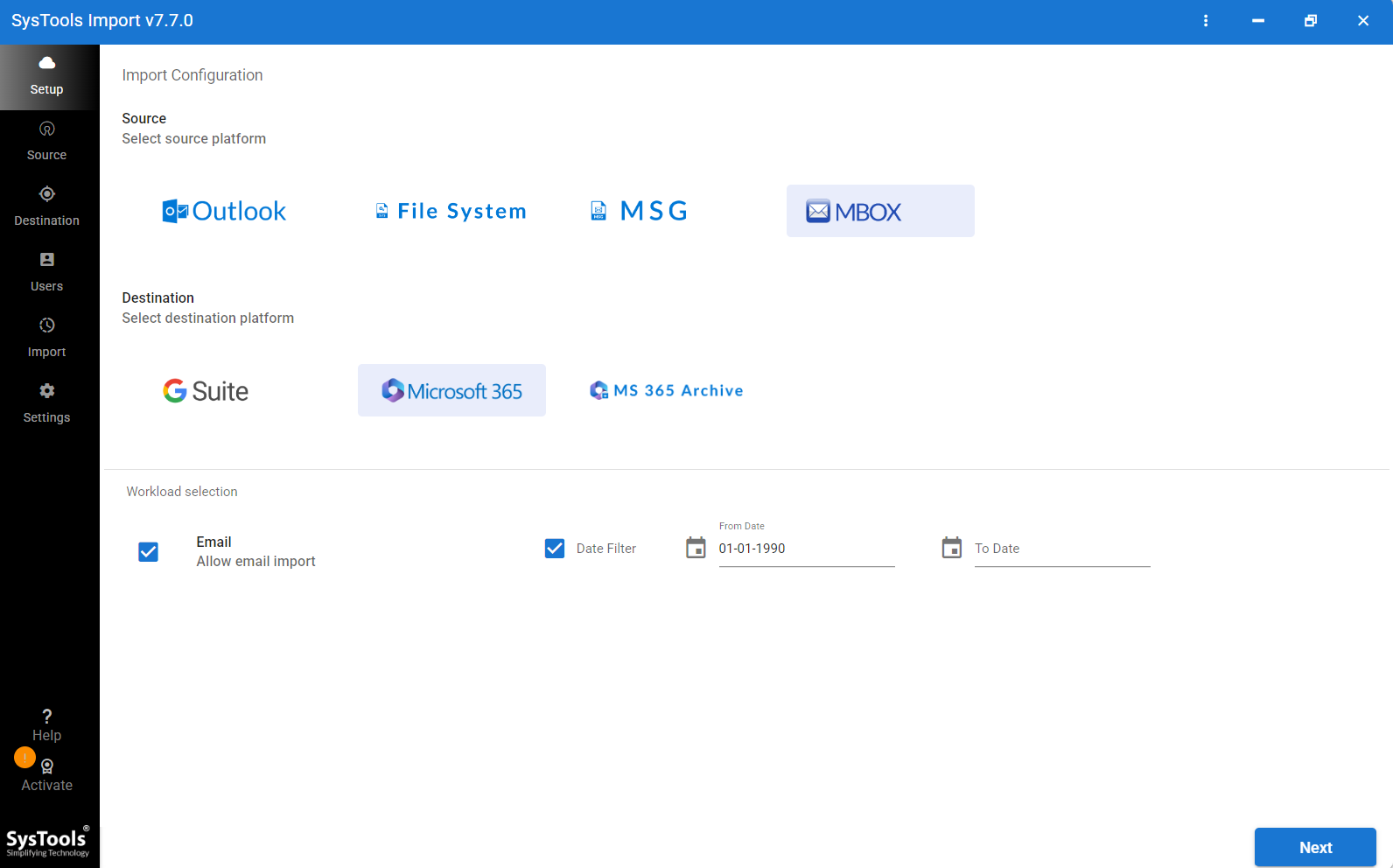
- Select MBOX as source and Microsoft 365 as Destination from the given options.
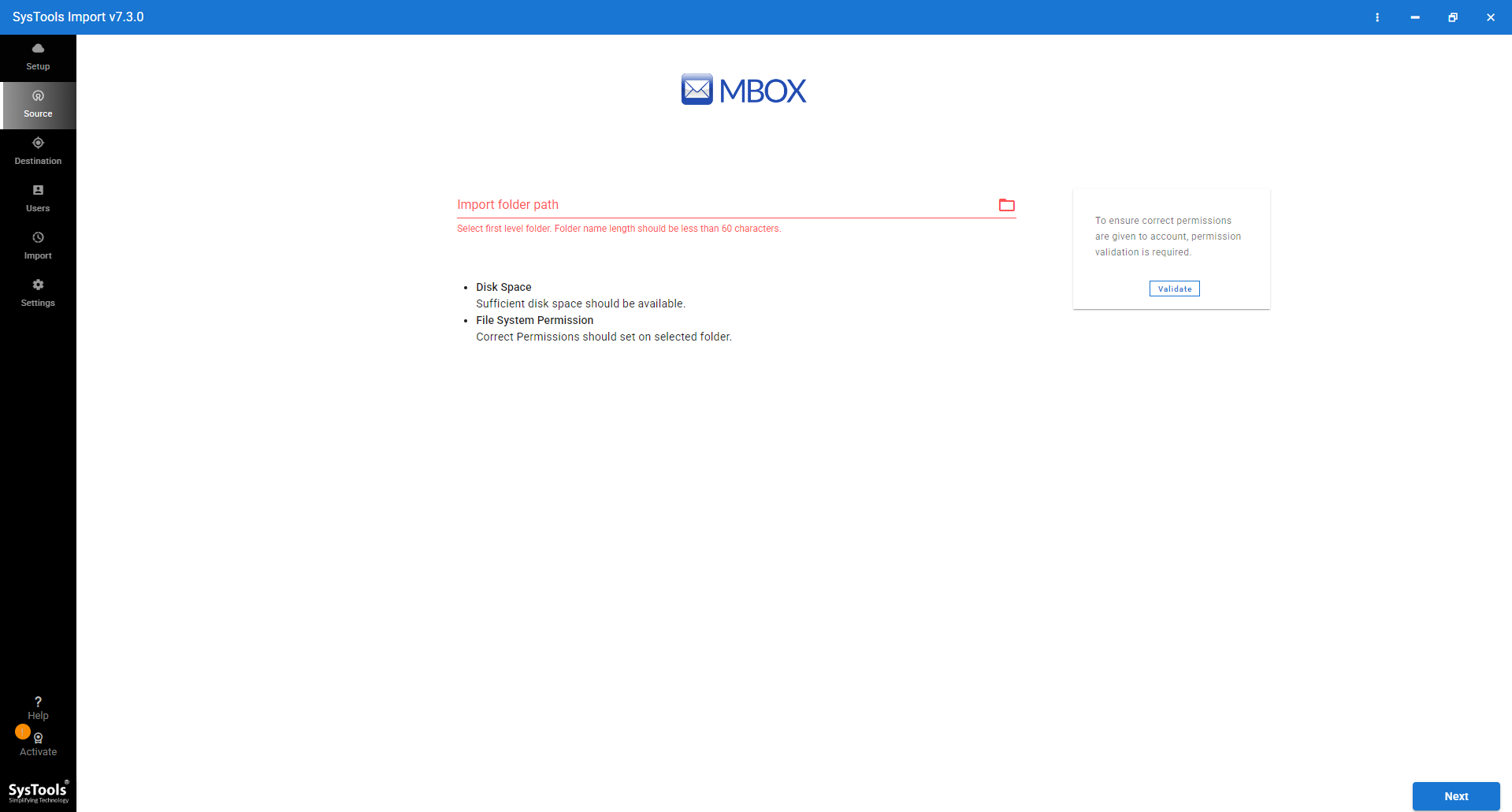
- Now, click on the folder icon and browse your MBOX files. Click on Validate.
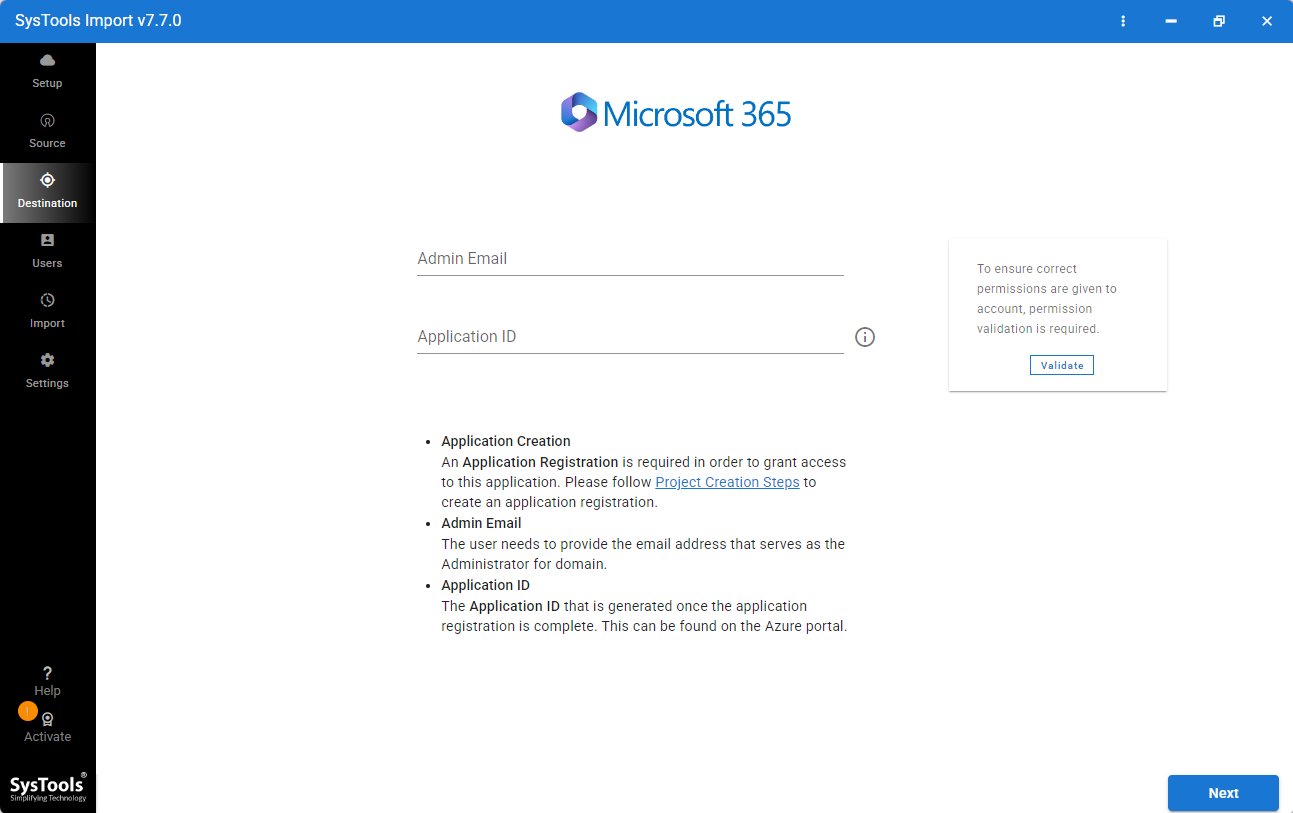
- After that, enter your Office 365 account credentials and hit the Validate option.
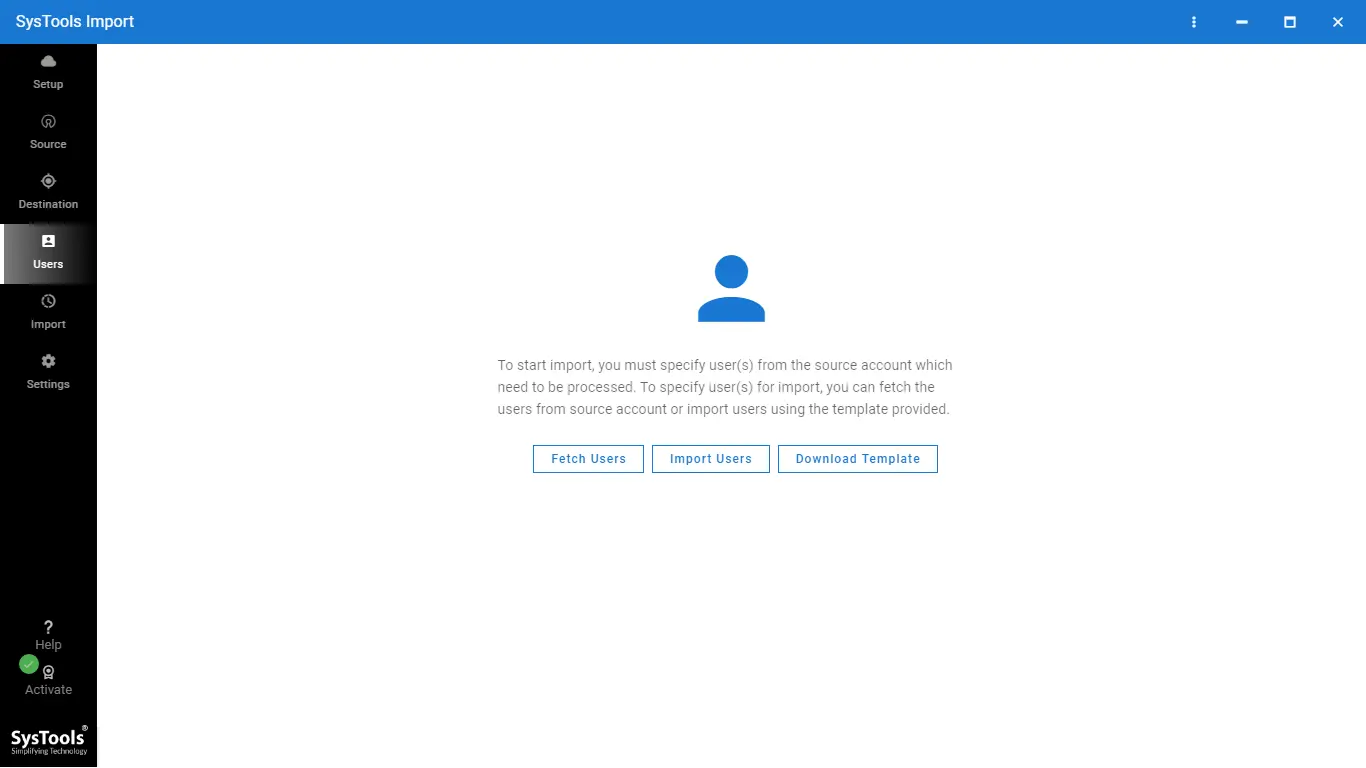
- Click on Fetch users and select user targeted mailbox.
- Go to Settings and select concurrent users based on your system configurations.
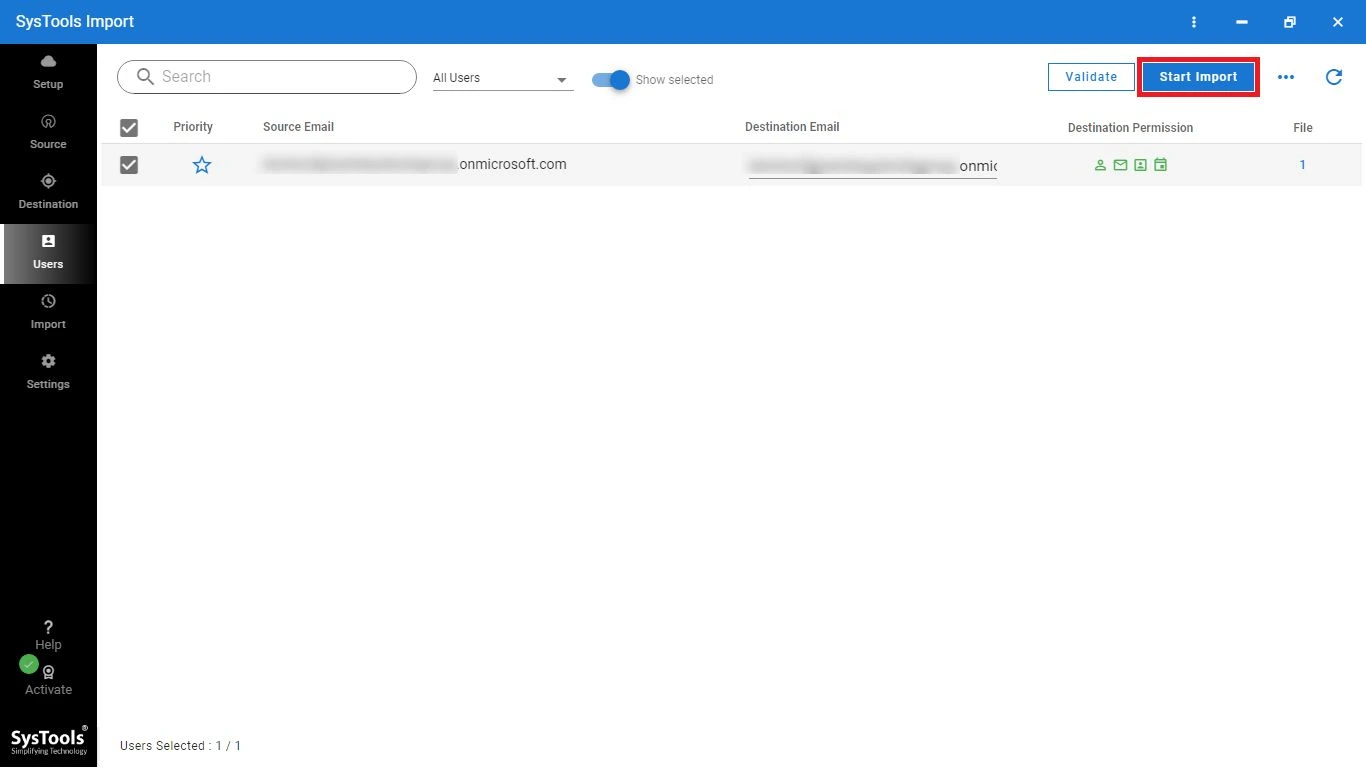
- Finally, click on Start Import.
Core Features of the Certified MBOX to Office 365 Migration Tool
- It is a standalone software which means it does not depend on any email client to migrate MBOX to Office 365.
- Using this comprehensive tool, users can import large MBOX files in bulk without facing any restrictions.
- It allows IT administrators to migrate multiple user mailboxes to Office 365 accounts easily.
- This tool guarantees users to maintain original formatting, structure, and attachments.
- Works smoothly on all latest and old editions of Windows operating system.
- The tool supports an easy interface that enables users to transfer files in a few clicks avoiding hassle and confusions.
- In addition, it keeps data safety and result accuracy at first that makes it an approachable solution for IT admins, business and enterprise users.
- Generates a detailed log report that helps to track MBOX to Office 365 migration process.
Conclusion
The import MBOX to Office 365 is not a straightforward process, as Office 365 does not support MBOX format. While there are manual methods available for both Windows and Mac users, they hold their own limitations and often become lengthy processes. To overcome these, we have introduced an automated MBOX to Office 365 migration tool that will ensure a safe and quick process with complete data safety. Additionally, it will reduce your manual effort and save time. So, choose wisely after analyzing your requirements.