Direct Ways to Import VCF to Office 365 Account in Bulk


Looking for the best methods to import VCF to Office 365? In this guide, we explain easy methods to transfer vCard (.vcf) to Microsoft Office 365 account. VCF (vCard) files are widely used to save contact information. Once users import vCard contacts into Office 365 helps centralize contacts to easy access across Outlook & Microsoft 365 services. In this guide, users will get to know main reasons to transfer from VCF to Office 365. Let’s continue with us to know easiest methods to import vCard contacts into Office 365.
VCF is standard format that saves contact information. On the other hand, MS Office 365 only supports importing contacts from CSV files. If users have thousands of important VCF contacts & moving them into Office 365 one by one can be time-consuming task. In this article, users get to know reliable methods to import VCF to Office 365 without risking data. This article highlights why users need to perform this migration. Recommends appropriate methods to import VCF contacts into Microsoft Office 365.
Why Users Want to Import VCF to Office 365?
vCard/VCF is one of the most accepted file that used to store contacts information. This file retains crucial details such as names, phone numbers, email addresses, company names, websites, & postal addresses. Still many, users decide to import VCF contacts into Office 365. Let’s learn practical reasons–
- Moving contacts from Android smartphones to Outlook
- Switch contacts from Gmail, Yahoo Mail, Thunderbird, or Apple Contacts to Microsoft 365.
- A centralize personal & business contacts in one secure account.
- Users can sync contacts across Outlook desktop, Outlook Web App, & mobile devices.
- It improves collaboration within MS Office 365 business environments.
- Automatically create backup of important contact information in Microsoft cloud.
Once users import vCard contacts into Microsoft Office 365, they can directly access them from anywhere. Just simply signup MS Office account & access contacts from any device.
DIY Method to Import vCard (.VCF) to Office 365
If users have small number of contacts and don’t want to charge for software, then they can use this free method to import VCF to Office 365.
A Quick Tip: Open Outlook on your system and import VCF contacts. After importing them into Outlook, you just need to export contacts as CSV format.
Follow these steps to move vCard Contacts to Office 365
- Sign in to your Microsoft 365 account.
- Open People from Outlook app.
- Select Manage Contacts.
- Click Import Contacts.
- Browse & select CSV file.
- Click Import.
- Wait to complete the process.
- Now contacts start appearing in Office 365 account.
Main Restrictions in Free Method
As we know, free methods don’t cost charge but they come with some limitations. Let’s know the drawbacks of free techniques.
- There is no direct support to import bulk of VCF contacts in Office 365.
- Need Outlook desktop on system.
- Time-consuming task if users have thousands of contacts.
- High chances of duplicate contacts in MS Office 365.
- Contact fields may not map correctly.
- This method is not best for enterprise-level migrations.
Specialized Solution: Import VCF to Office 365 Account in Bulk
If users handling thousands of contacts & want direct solution to import VCF contacts into Office 365 then they can try Office 365 Import Tool. This application professionally handle VCF migration. This utility automatically process multiple vCard files. It preserve complete contact information during migration process. This tool also support batch process that allow users to import batch of vCard contacts into Office 365. Additionally, this application also reduces manual effort & minimizes chances of data loss.
Steps to Use vCard to Office 365 Importer Tool
- Firstly, launch Office 365 Importer Tool.
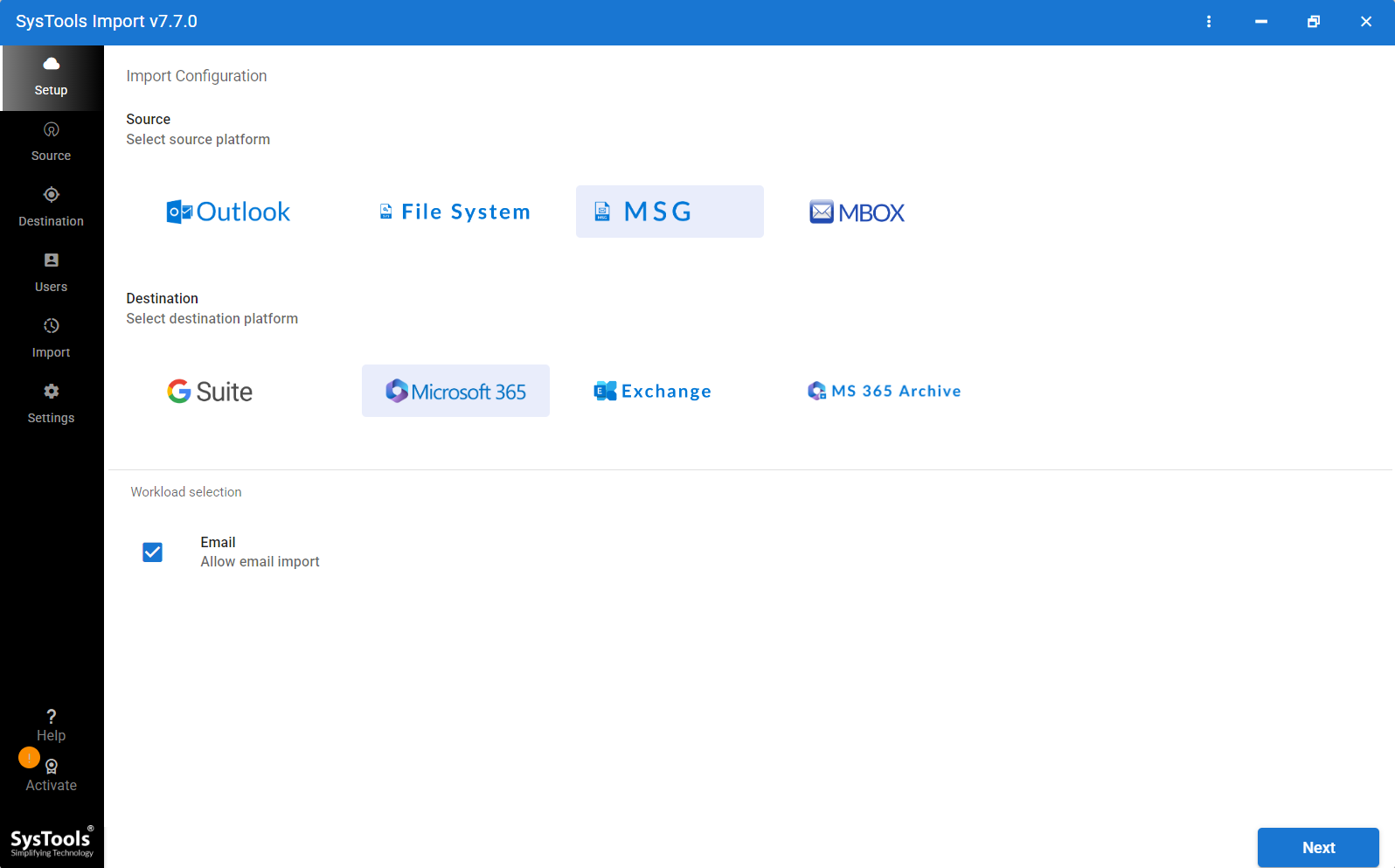
- Select “File System” as source platform & choose “Office 365” as destination platform.
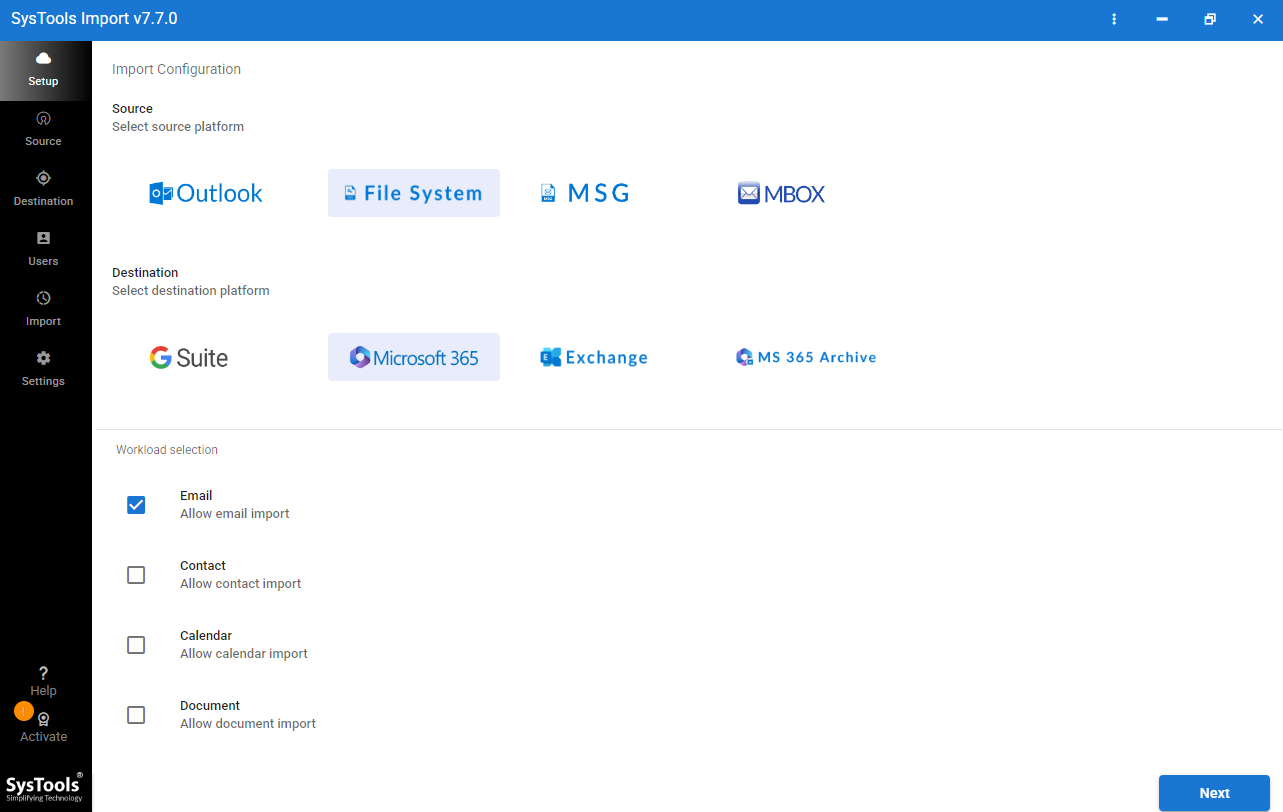
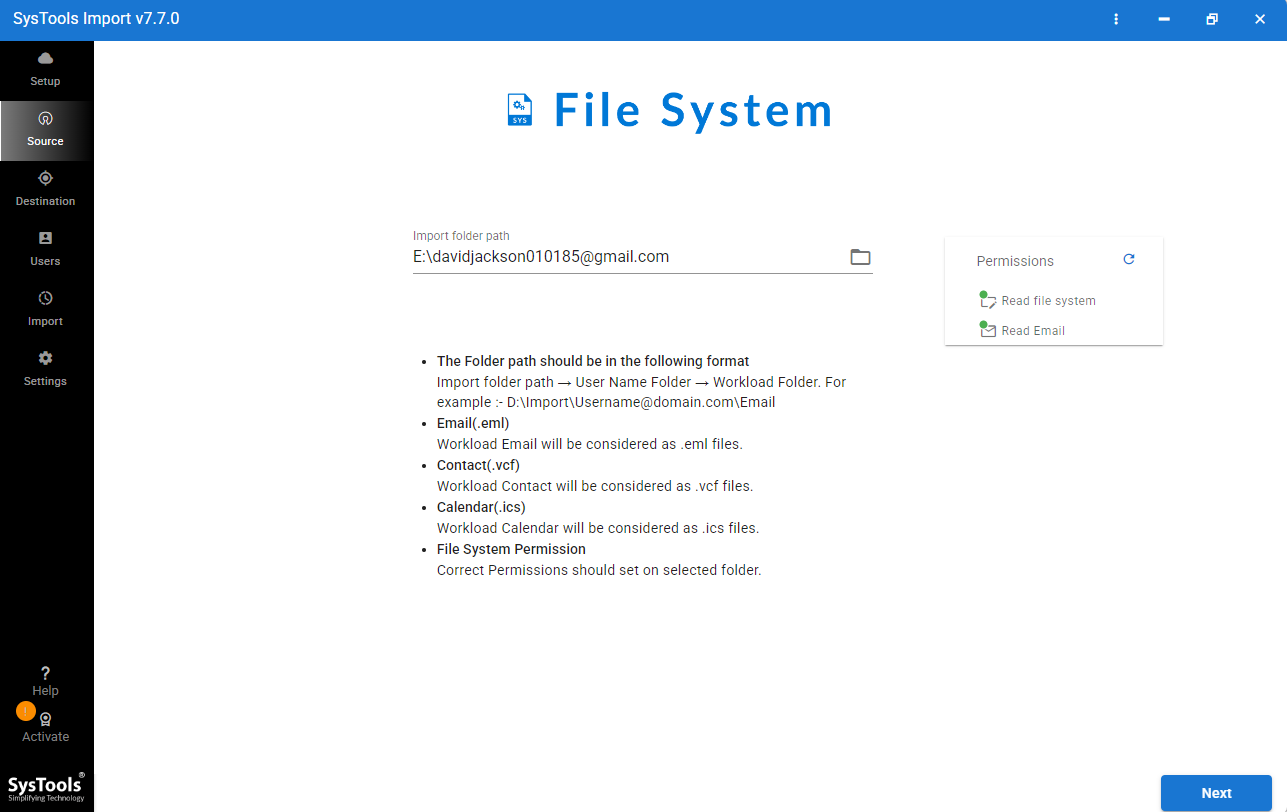
- Now select the folders that contain VCF/vCard contacts.
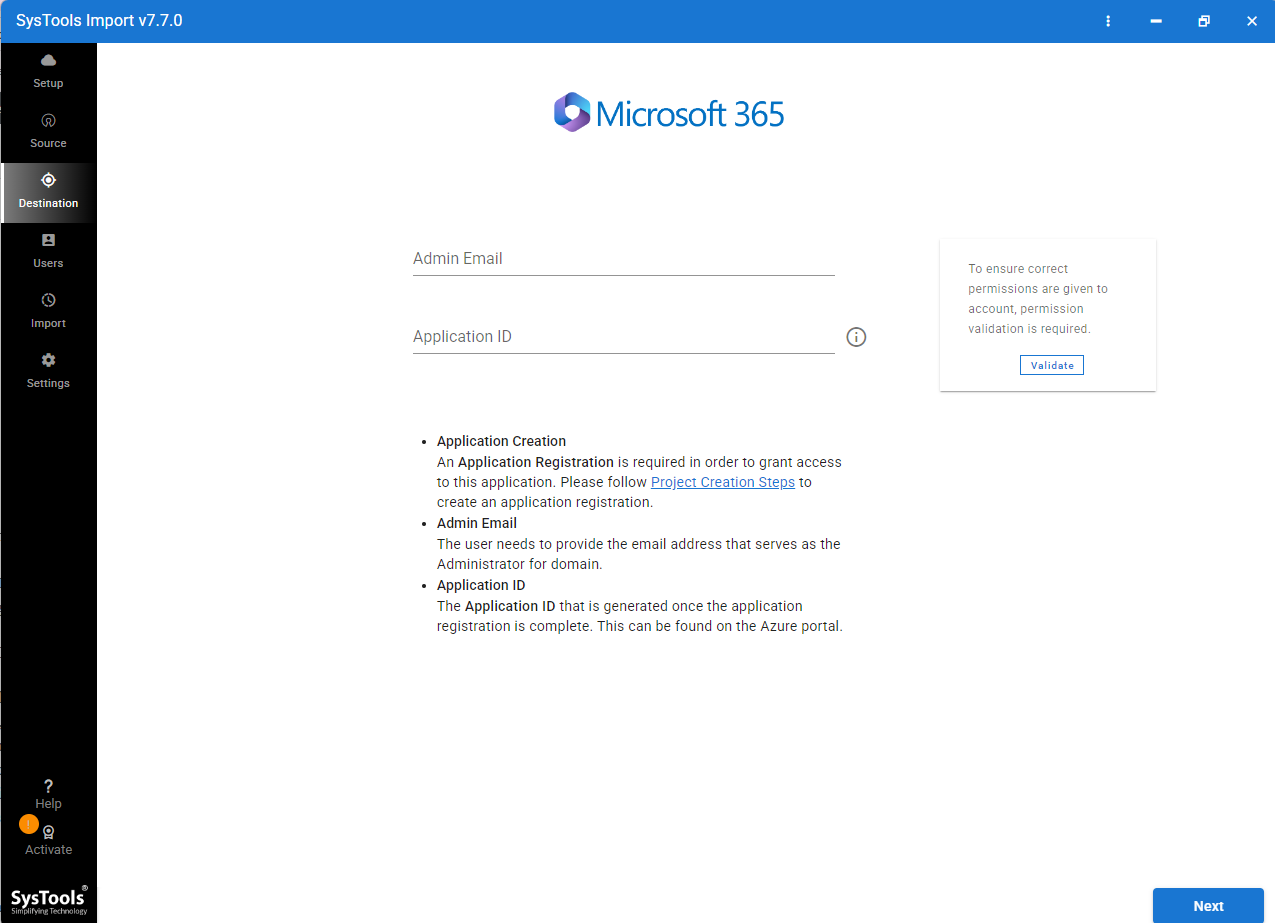
- Enter Microsoft 365 login credentials to connect with mailbox.
- Start the migration process to import VCF to Office 365.
Noteworthy Key Features of Pro Solution
Compared to free method the professional solution easily import bulk of vCard contacts into Office 365 account without losing formatting. This tool also offer several advantages.
- It easily import multiple VCF files simultaneously.
- This tool also preserve complete contact information during migration.
- It also maintain original formatting after import process.
- No need of any manual work to import vCard contacts into Office 365.
- Users get fast migration process, unlike free method that consuming time.
- It also minimize duplicate contacts entries in MS Office 365.
- A simple interface that required zero technical expertise.
- Facilitate safe conversion that upholds privacy standards.
Writer Last Word
Moving vCard contacts into Office 365 is common need of any users. People often change their contacts from Android phones, Gmail, Apple Contacts, Thunderbird, & numerous other email systems. Microsoft Office 365 provide free method that require CSV file to access vCard contacts in Office 365. If users want to import VCF to Office 365 in batches, then try expert-recommended solution. This application provides swift, safe, & direct transition from vCard to Office 365. This tool allows straightforward conversion for both technical & non-technical users, effectively saving their time. It easily manages large numbers of vCard files. Choose any method that best matches your requirements.