How to Migrate Google Vault to Office 365: Simple Guide


Summary: For migrating from Google Vault to Office 365, companies will need to ensure both their compliance obligations and their access to records during platform migrations. This guide contains all of the necessary steps for moving your archived records, including both manual export-import methods and cost-effective, automated migration methods. Adhering to these best practices and testing your records as early as possible will help you achieve a secure and efficient transfer of your company’s sensitive data.
Why to Migrate Google Vault to Office 365?
Migrating from Google Vault to Office 365 Migration can be a big step for anyone or any organization that switches to stay in compliance with company policy or simply wants to have superior collaboration capabilities when switching to another platform so they can have better collaboration capabilities. In most cases, when users discover that Google does not provide them with an automated way (eg., a single button) of exporting their archived/sensitive data from Google to the Microsoft environment, they feel immediate frustration with the entire process of migrating their archived/sensitive data.
Since the two different, yet equally powerful platforms (Google and Microsoft) have created completely different environments, developing a migration plan that is unclear or undefined often results in either data fragmentation, missing metadata (such as who created/deleted what) or missing attachments due to how/where the data is located. All three of these instances create an unnecessary level of stress for both the IT department and business owner.
What is Google Vault to Office 365 Migration?
Fundamentally speaking; it’s a matter of data retention and accessibility. Google Vault allows you to store eDiscovery and archival records (emails/chats and Drive documents) in a proprietary format. When you export data from Google Vault, you will receive static snapshots of your data — i.e., PST or MBOX file(s) along with a set of metadata. The task of migrating these files over to Office 365 isn’t just about transferring your files; it also involves reintegrating those files back into live, active searchable mailboxes or archived folders located within the compliance framework of Microsoft365 (MS365).
Essential Checklist & Best Practices for Migration
Do not move your data unless you have a solid plan in place. Moving data with no plan is a surefire way to create problems for yourself.
- Audit Your DatQ: You will have to perform an audit of your data. Find out what you currently have stored in Google Vault. Are you moving everything or will you only be moving specific matters?
- Identify Your Format: Decide which format you will use for your export from Google Vault. The exports from Google Vault will usually come in either PST or MBOX file format. Microsoft 365 works best with the PST file format for email.
- Assess Licensing: Do confirm that the Office 365 accounts that will be used as the destination of the imported archive have enough available storage to handle the data you are importing.
Test Small: Finally, you will need to test each of the first migrations of each user before performing a large bulk migration to ensure the integrity of the data you are moving.
How to Migrate Google Vault to Office 365 Manually? Step-by-Step
Manual Exporting from Google
- To obtain your data from Google before exiting:
- Log in to your admin account in Google Vault.
- Create a new matter.
- Search for the necessary data (e.g., Gmail, Drive, etc.) in that matter.
- Select “Export,” and choose the desired format (PST for e-mail).
Importing into Office 365
Once you have your PST files, in order to import your data into Office 365:
- Use the Microsoft 365 Import Service in the Compliance Center.
- Upload your PST files to a specified Azure storage location (provided by Microsoft).
- Create an import job to import the information from your PST files to the desired user mailboxes.
Importing Google Vault to Office 365 using Professional Tool
The Office 365 Import tool is an automated, enterprise-level application that provides safe, efficient, and effective migrations of small and large Google Vault email archives to Microsoft 365 mailboxes. The migration application uses the required source and destination administrator credentials to accomplish the migration of multiple mailboxes along with their associated emails and attachments to their respective mailboxes in the Microsoft 365 tenant, while ensuring that the integrity of the data being migrated remains consistent with the data being migrated from Google Vault.
How can I export data from Google Vault to Office 365 Importer:
- Sign in to vault.google.com using your administrative credentials
- Search for your matter, choose a search option, and define criteria with which you would like to use to display search results
- Click Export and enter a name for the request, and choose MBOX as the export format
- After the process has completed, go to the Exports tab to download your exported file.
How the tool works:
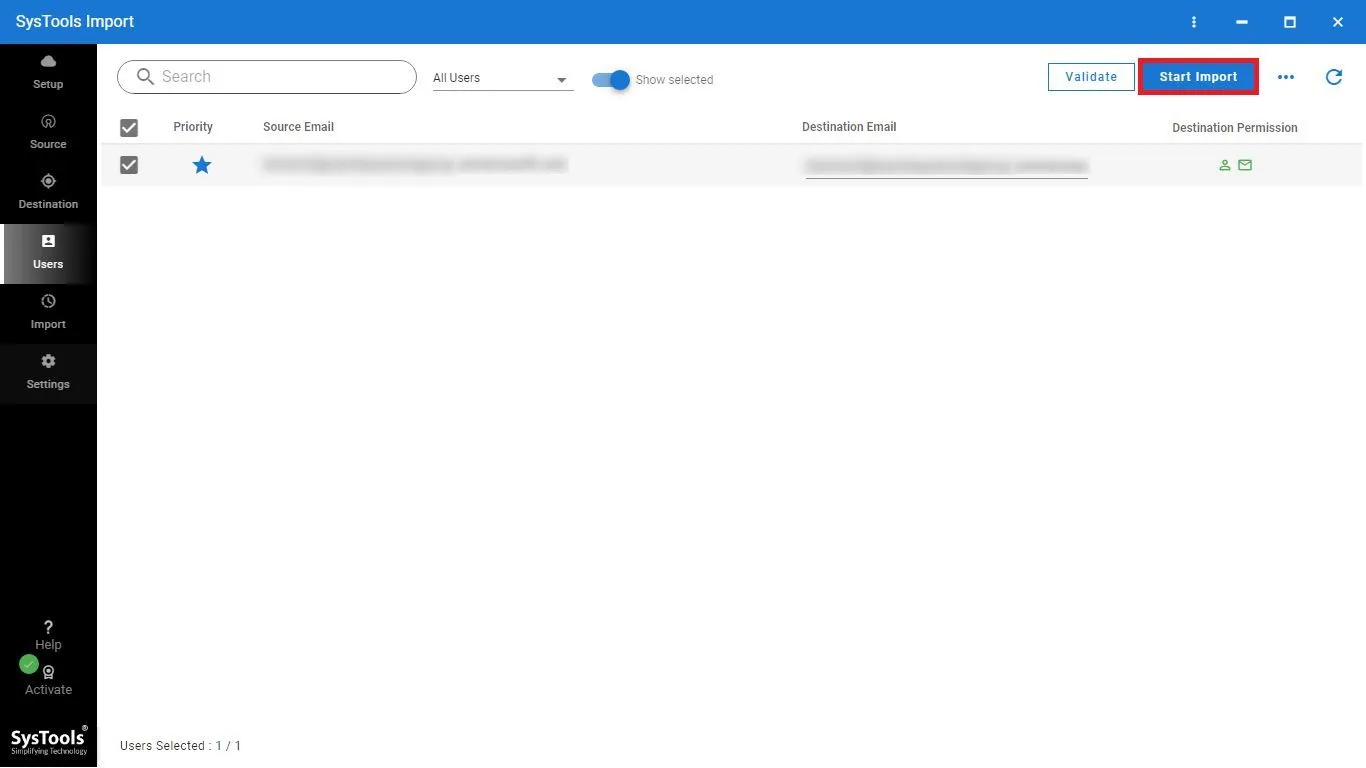
Using the Office 365 Import Tool is simple and consists of only 5 steps as below:
- Download and Install the Google Vault to Office 365 Migration Tool.
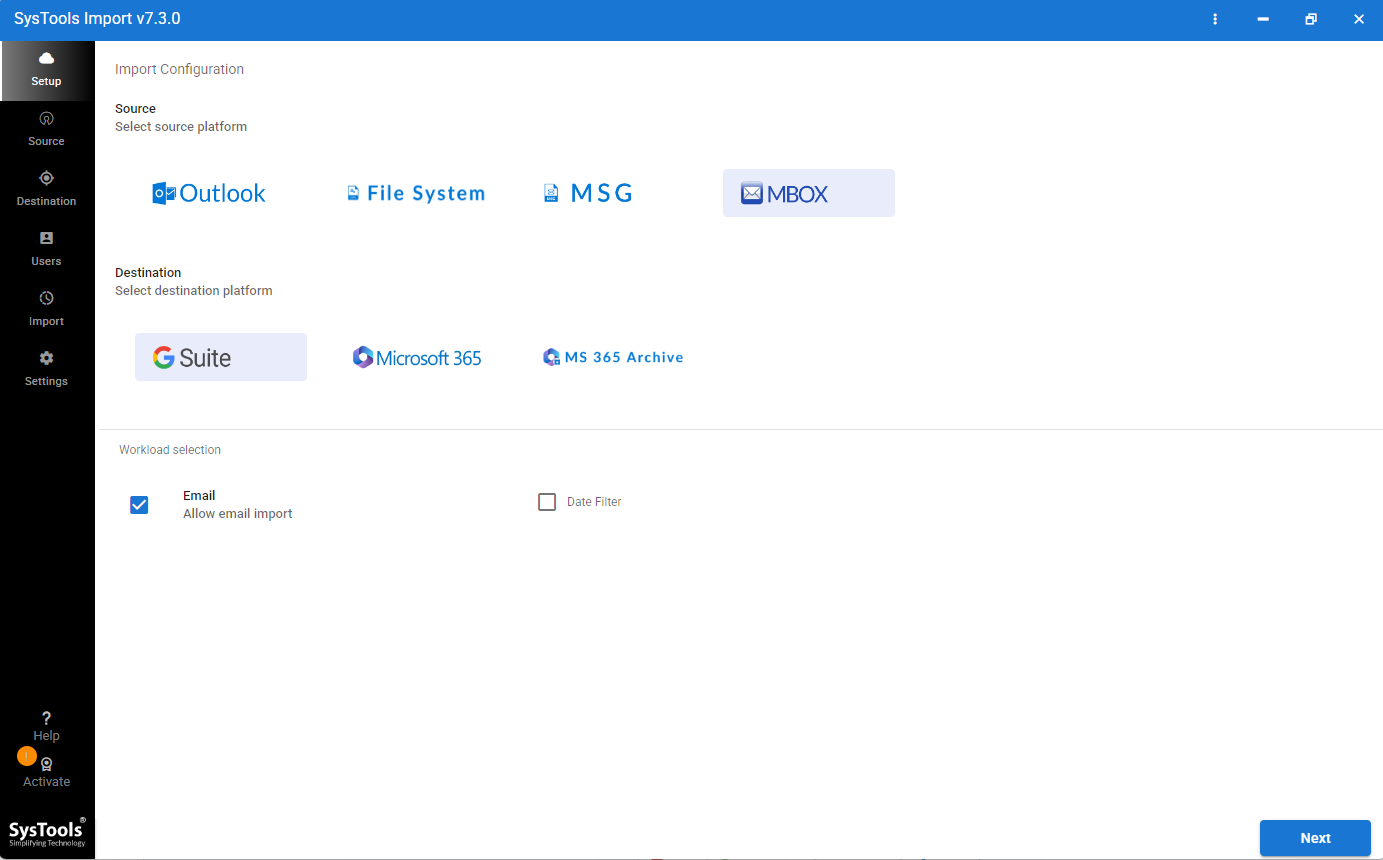
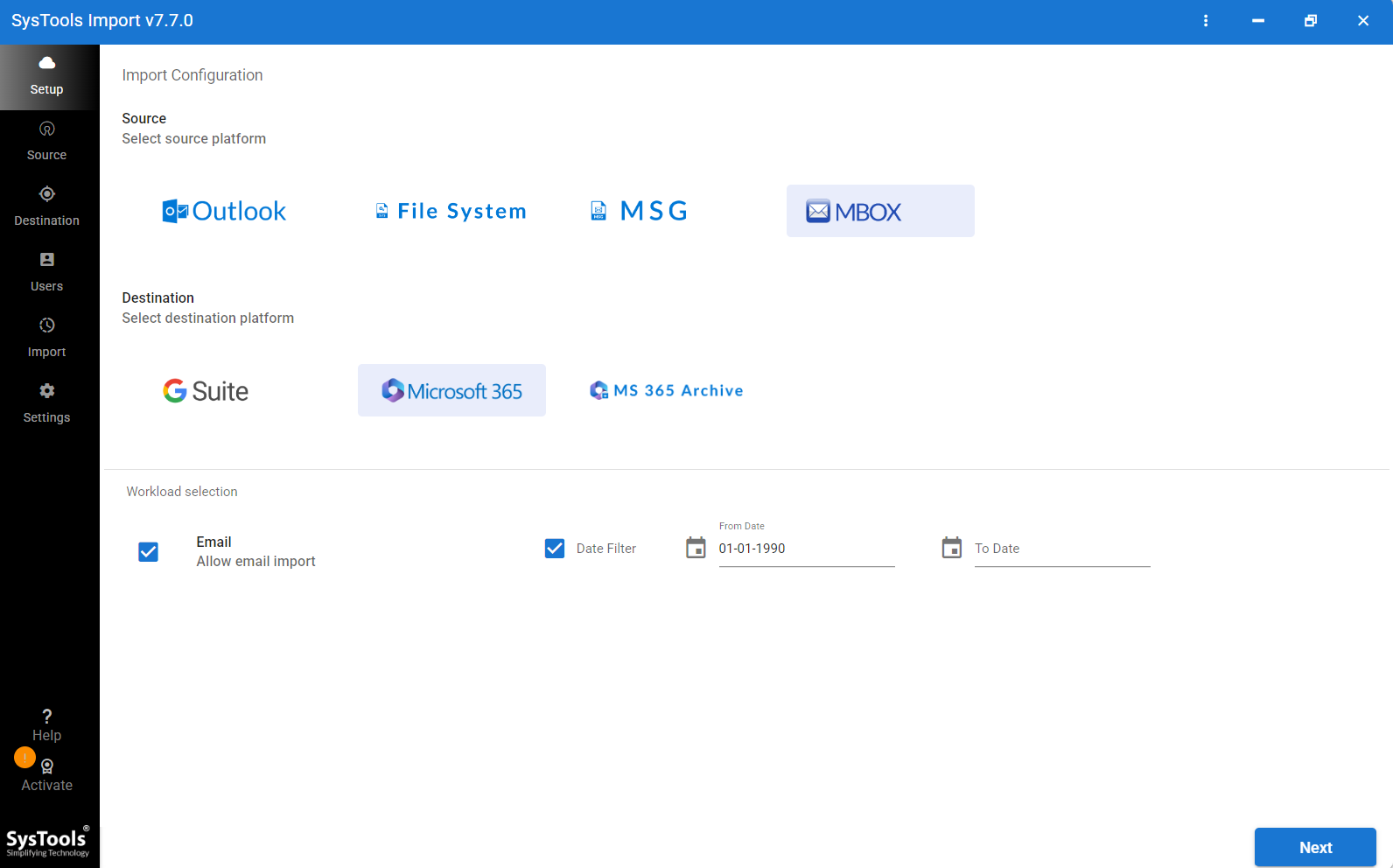
- Choose MBOX as the Source and Microsoft 365 as the Destination.
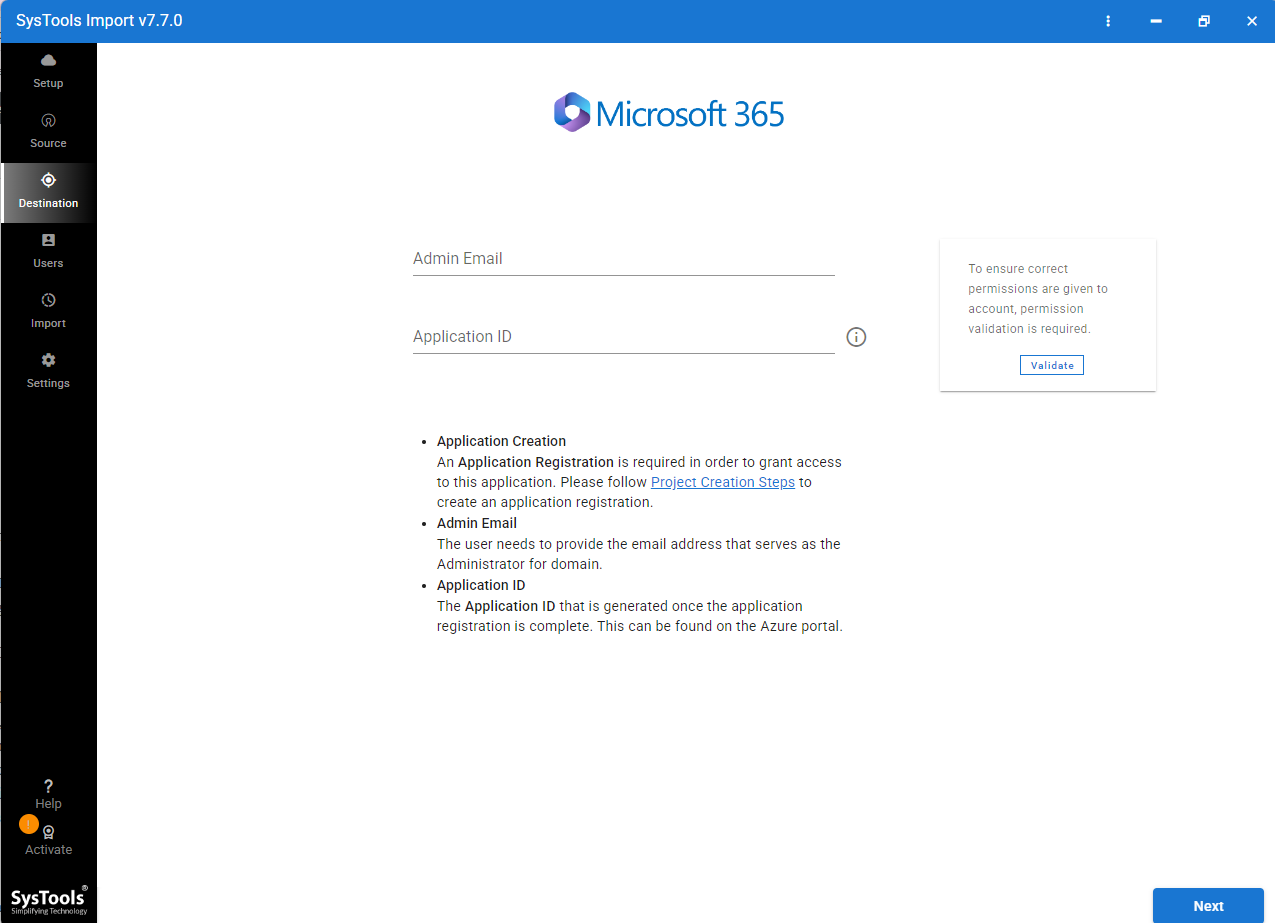
- Log in to Admin Account and Validate with Required Credentials.
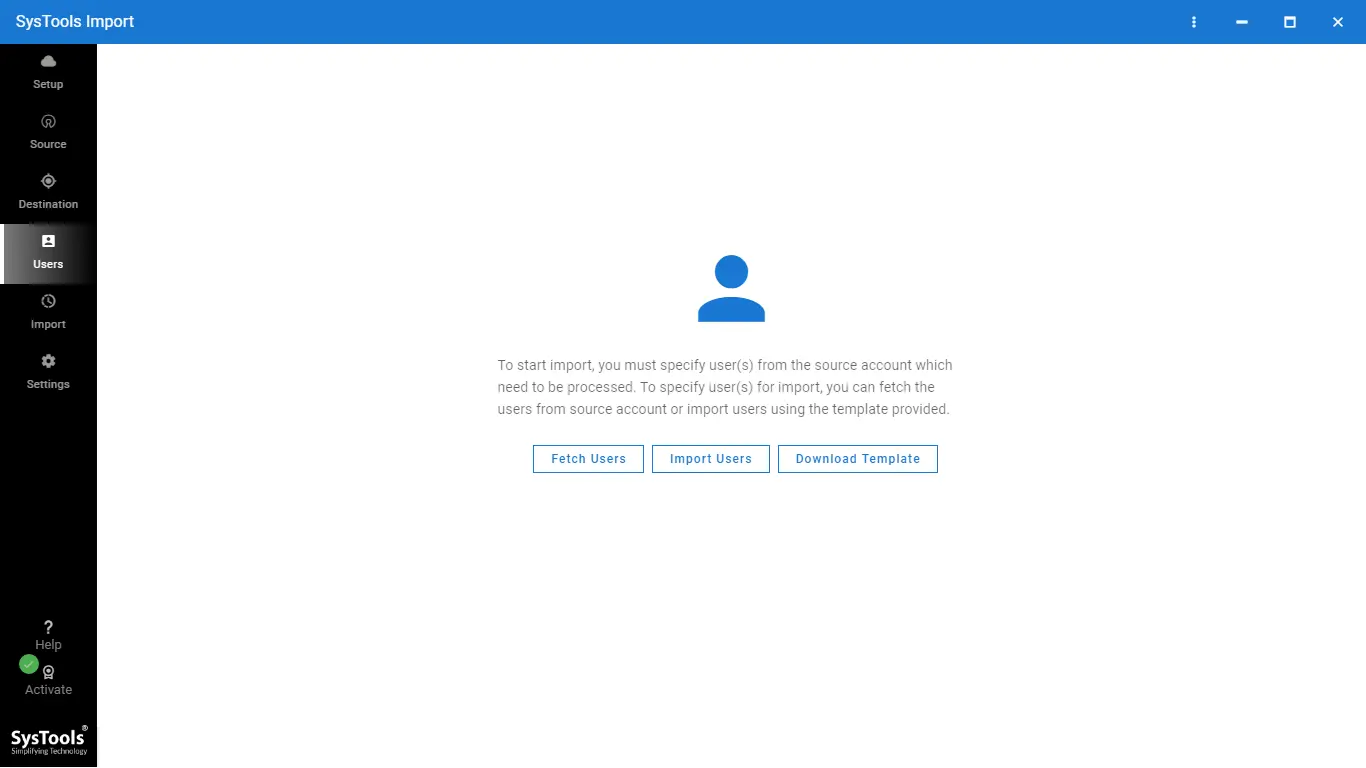
- Add Users via Fetching or Importing a Users CSV File.
- Click the Start Migration Button to Start the Migration from Google Vault to Office 365.
Highlighting Features of the Tool:
- Mail Routing for Archiving: Route Google Vault data to the Microsoft 365 Archive Mailbox directly.
- Flexible Recovery: Targeted retry options for failed items and the ability to run the entire migration again without duplicating data.
- No Size Limitations: There are no data limits for archiving large organizations in the Google Vault.
- Precision Filtering: Users have the ability to selectively migrate data based upon date ranges.
- Admin Security: Admin credentials are required for a password-free migration using the authentication credentials of the administrator.
- Real-Time Tracking of Migration: The migration application includes an interactive dashboard that displays the status of the migration in real-time.
- Comprehensive Reporting: The migration application uses cryptographic logs and provides a detailed audit trail of all migrated data.
Questions And Answers (FAQ)
Q: What format does Google Vault export to?
Normally, either PST or mbox. Plus many other ancillary files containing metadata associated with exported files.
Q: Does Google vault have a native “move” button?
No. It requires you to first export from Google and then Import into the destination service via a two-step process.
Q: Can I use the PST Import Service For Free (No Charges)?
Yes, but you must still handle the export from Google manually. Microsoft provides the tools to use, however.
Q: Where is the biggest risk of failure?
Mistakes during account mapping; or mailbox storage restrictions at the destination side are the biggest risk.
Q: Should I use an automated solution or manually perform the task?
If you have more than 2 or 3 accounts, you should use an automated solution to accomplish the task quickly and accurately.
Closing
When choosing to move Google Vault to Office 365, you must prepare and wait for this process to take place (this can be done by either using an automated solution to move Google Vault to Office 365 by using the PST import process or by migrating manually). You are ahead of many users since you understand that the move will take a lot of manual effort or involve using special tools (such as software solutions).
The ultimate objective (regardless of whether you use an automated or manual method) is to have your archived information safely and functionally located in your new system. Begin with a small amount of archived data, test for proper functioning, and keep your archived data safe during and after you transition your data.