How to Migrate Zoho Mail to Office 365? Top Simple Steps


Are you planning to migrate Zoho Mail emails into Microsoft Office 365 account, but worried about losing important emails, folders, or contacts during migration? Many individuals & businesses are making the switch from Zoho Mail to Office 365 to better their collaboration, security, & productivity. However, without the right procedure this task becomes complicated & risky. Migrating emails from one source to another is easy, if you have the right method. Users often face multiple challenges, such as mailbox compatibility, maintaining original folder hierarchy, migrating large mailboxes, handling attachments, & avoiding duplicate emails.
In this blog, users learn simple techniques to migrate from Zoho Mail to Office 365 accounts. This article provides two practical methods to import Zoho Mail emails into Microsoft Office. Let’s continue with us to migrate your Zoho Mail mailbox securely while preserving data.
Reasons to Migrate From Zoho Mail to Office 365
Zoho Mail is a cloud based email hosting server that was created for businesses and professionals. Users get a secure & ad free email platform with custom domain support. On the other hand, Microsoft Office is a cloud-based productivity suite from Microsoft. It combines business emails with Office application & collaboration tools. Besides email, MS 365 includes several applications like Word, Excel, PowerPoint, Outlook, Teams, OneDrive, & SharePoint.
Most of the businesses choose to migrate from Zoho Mail to Microsoft Office 365 to have advantages of Microsoft enterprise-grade email platform and productivity ecosystem. Let’s know further reasons to switch from Zoho Mail to Microsoft Office.
- Users get better integration with MS Outlook, Teams, OneDrive, SharePoint, & Excel.
- Enterprise-grade security features that come with (MFA), Microsoft Defender, & advanced compliance policies.
- It provides larger mailbox storage compared to many standard email hosting plans.
- Easily collaboration with teams by MS Teams & shared calendars.
- A centralized administration through Microsoft 365 Admin Center.
- Simple cloud infrastructure with high availability & regular updates.
How to Easily Migrate Zoho Mail to Office 365?
If you have a small number of emails then you can try this free method. Zoho Mail & Microsoft 365 support IMAP. Microsoft allows administrators to migrate mailbox data via IMAP migration method.
- Sign-in with your Zoho Mail Account.
- After that, Open Settings & Go to Mail Account or IMAP Access.
- Enable IMAP, if disabled.
- Verify username & password.
- In the next step, create user mailboxes for every employee.
- Assign Microsoft licenses.
- Verify your domain.
- Check that Exchange Online is active.
- Once done, Open MS Exchange Admin center.
- Go to migration & create new migration endpoints.
- Select the IMAP setting & input Zoho Mail IMAP server info.
- Validate connection.
- After this step, you need to create & upload a CSV file that has user mailbox details.
- Start migration.
- Monitor migration status from Exchange Admin center.
- Now update your MX records.
- You can change Autodiscover, if needed.
- Wait for DNS propagation.
- Start using Zoho Mail emails in MS Outlook & Outlook for Web.
Why Users Don’t Choose Manual Methods for Migration?
The free method comes with multiple drawbacks. Users often use a manual method to move Zoho Mail to Office 365, but sometimes this method fails critically.
- Free methods need technical expertise.
- Multiple configuration steps increase complexity.
- Only Zoho Mail mailbox emails are migrated to Office 365.
- Users cannot transfer contacts, calendars, notes, & tasks through IMAP.
- Large mailbox migrations require a longer time than usual.
- Any interruptions during migration can result in incomplete data transfer.
- Manual verification is required after the migration process.
Hassle-Free & Direct Way to Migrate Zoho Mail to Office 365
Try Office 365 Import Tool to easily migrate from Zoho Mail to Office 365 without any data loss. This application provides a fast migration process rather than a free method. There are users that don’t need to require any other email client to migrate Zoho Mail mailboxes into Office 365. This tool has multiple features that make the migration process simple & easy. Try out the free demo edition of this application to find out more about software.
A Quick Tip: Before beginning migration, users need to export Zoho Mail email as EML format. Check these steps to get Zoho Mail emails as EML.
- Sign in with a Zoho Mail account.
- Open folder (Inbox, Sent, etc.) containing emails you want to export.
- Select required emails.
- Click the More Actions (⋮)
- After that click on “More option” & choose “Export as EML”.
- Save downloaded EML files to your computer.
- Repeat the process to download all important folders.
Steps to Import Zoho Mail to Office 365 by Automated Solution
- Download Zoho Mail to Office 365 Migration Tool.
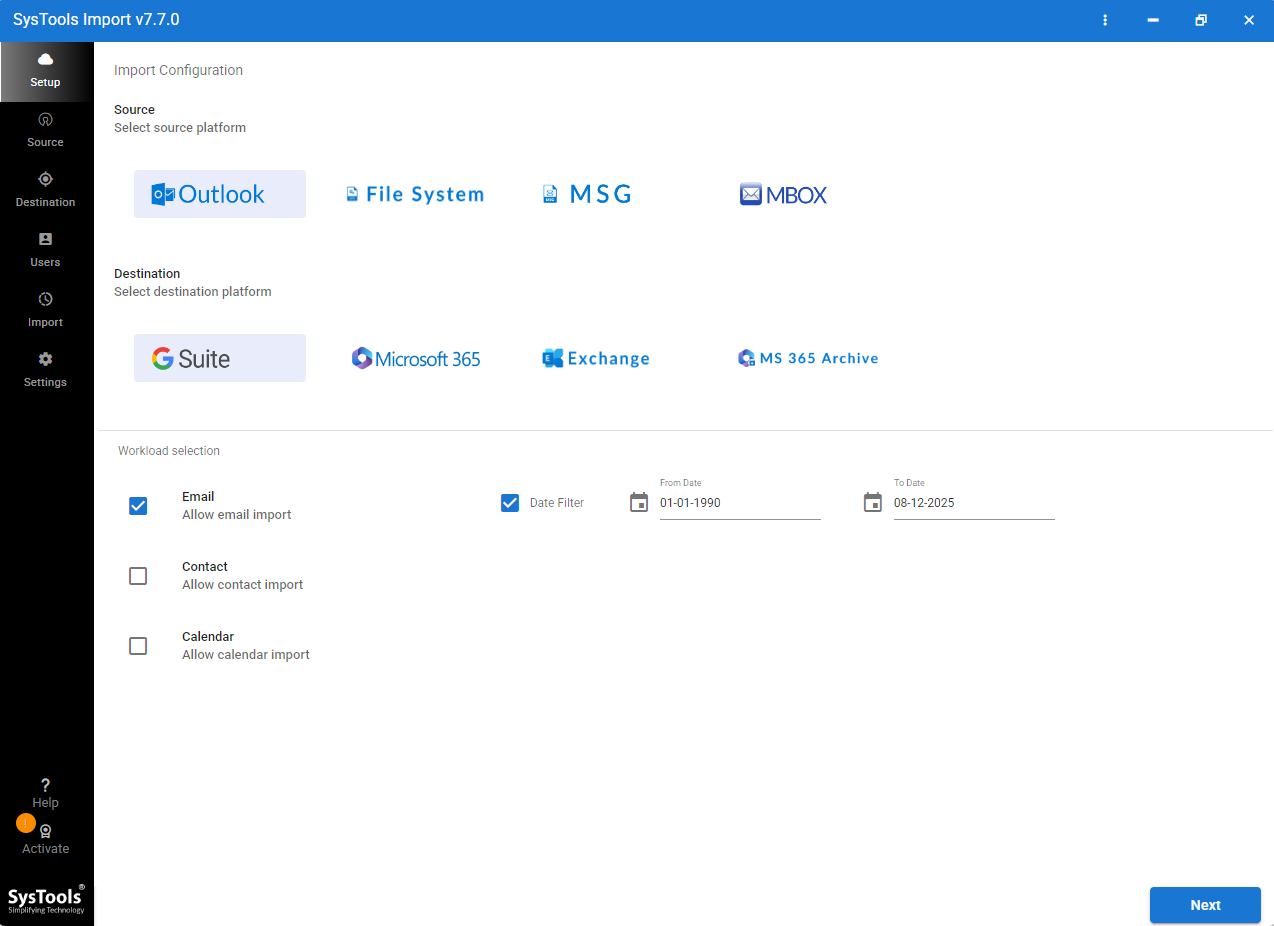
- Go to “File System” & select EML files that were created from Zoho Mail.
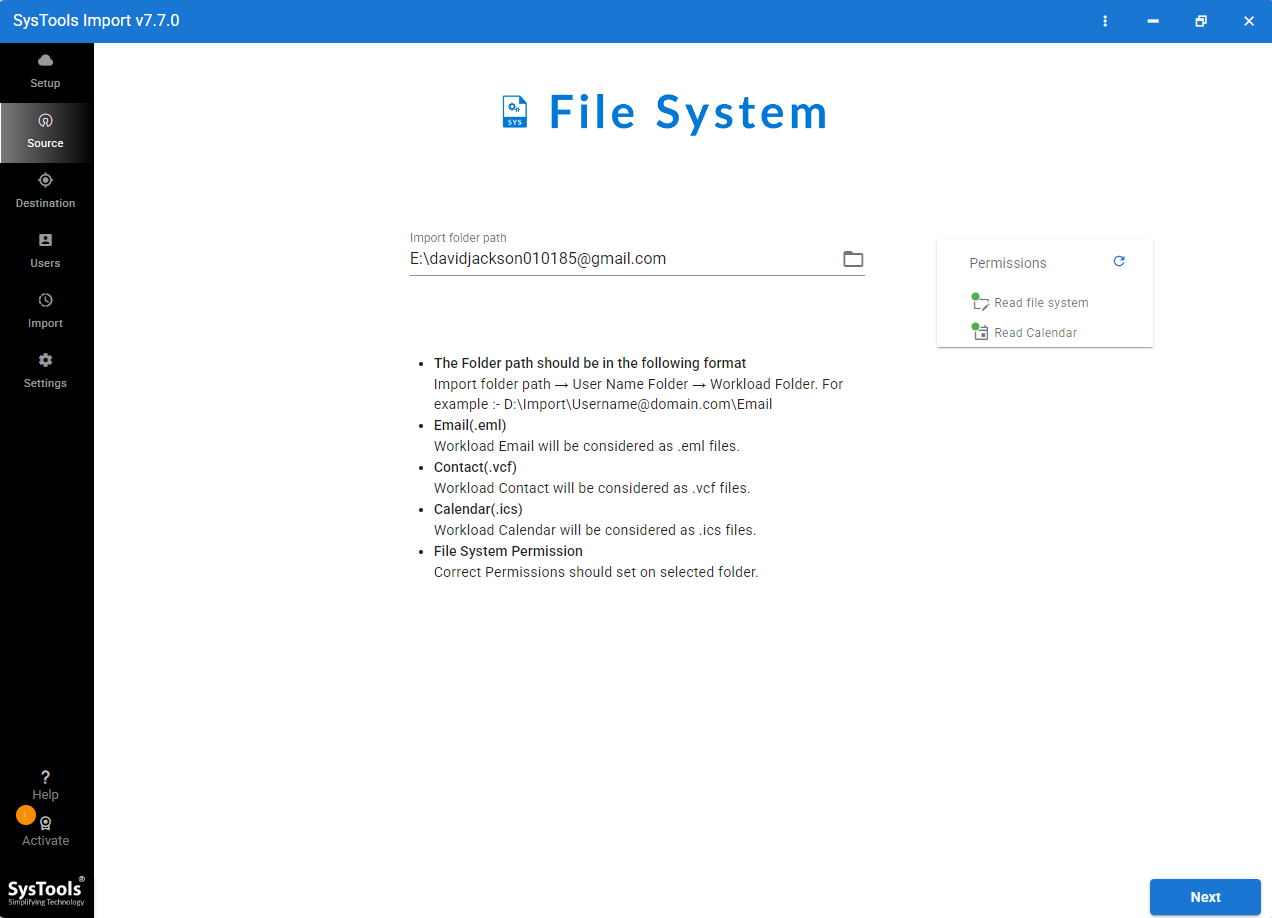
- Enter Microsoft 365 credentials and press on Next.
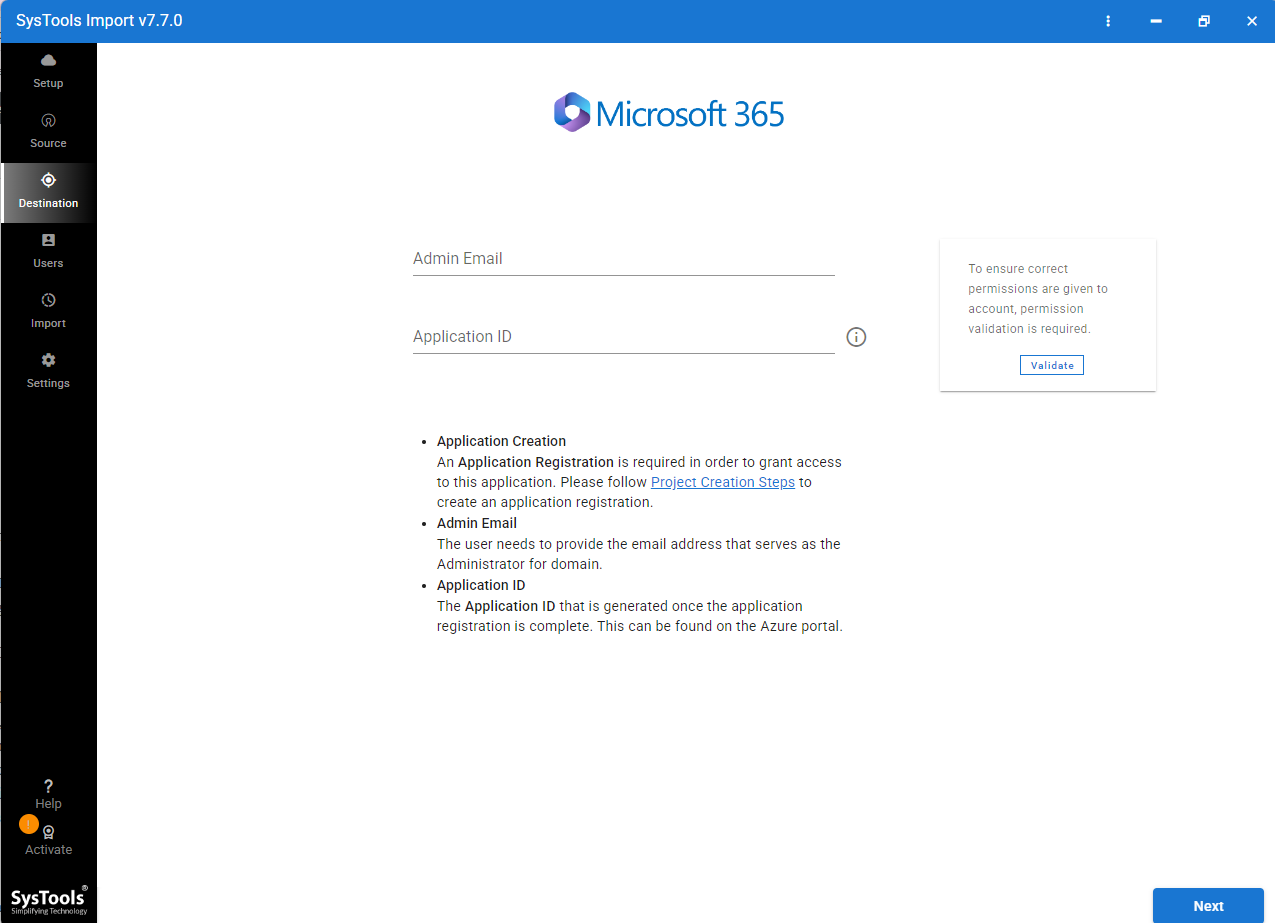
- Now, Start migrate Zoho Mail to Microsoft 365 account.
In Essence
Moving multiple mailboxes from Zoho Mail to Microsoft Office 365 can be an easy process, if you choose the right method. As we find out in the above sections, users migrate Zoho Mail to Office 365 because Microsoft Office 365 offers several long-term benefits. Users get stronger security, better collaboration, larger mailbox storage, & seamless integration with Microsoft’s productivity suite. A manual method is available to import Zoho Mail to Office 365 but they do not migrate all mailbox components.
If organizations & businesses want to migrate bulk of Zoho Mail mailboxes into Office 365 then give a professional solution. This tool simplifies the entire process. It preserves folder structure without losing single data. Choose any method that fits with your Zoho Mail to Office 365 Migration requirements.