How to Migrate Thunderbird to Office 365? Easy Guide


Summary: Many users of Thunderbird look to transition their email accounts over to Office 365 as a way to better integrate themselves into the modern Microsoft-based cloud computing environment. If you are a business professional that has grown tired of managing files locally or perhaps you are simply someone that wants your email to synchronize with multiple devices, you should anticipate having to plan your migration carefully in order to protect your data.
What exactly is Thunderbird to Office 365 Migration?
The process of moving your data from Thunderbird to Office 365 is simply the act of migrating your email messages and address book (which in the case of Thunderbird is called MBOX format) to Microsoft Exchange.
While Thunderbird is a robust open-source application and is great for use as a desktop client, it does not have built-in support for cloud storage and collaboration tools that are native to the Microsoft 365 platform. With that being said, understanding that you are moving your data from a local-first method of storage to a cloud-based solution, where your email and address book reside on a Microsoft server, and can be accessed anywhere, will make the transition smoother.
Migrating Thunderbird to Office 365: Essential Checklist
Have all of the following prepared before beginning the process to ensure a smooth transition:
- An active Microsoft 365 subscription and a mailbox already configured
- Thunderbird installed on your computer
- A stable internet connection that will accommodate the sync
- Administrative privileges for accessing the Microsoft 365 account (for verification of IMAP / SMTP configuration)
- Full back up of your current Thunderbird profile folder in case of problems or loss during migration.
How to Migrate Thunderbird to Office 365 Manually? Step-by-Step
If you are experienced in setting up email accounts using technical settings, you may wish to complete the move manually. To do so, you will need to create a new Thunderbird account for your Microsoft 365 account, and configure Thunderbird to use the IMAP protocol for folder syncing.
Steps on How To Configure Your Account
When prompted, choose the manual IMAP configuration option to enable folder synchronization. During the setup process, enter the following settings:
Incoming Server: outlook.office365.com
Port: 993
Outgoing Server (SMTP): smtp.office365.com
Port: 587
Authentication Type: OAuth2 (or the authentication method required by your email provider)
- Using the Drag-and-Drop Method: To use the drag-and-drop method after synchronization has been completed, open up your Thunderbird sidebar and see that your Microsoft account has a separate account folder. Next, simply drag-and-drop your local folders (Inbox, Sent and any other custom labels) into your Microsoft account folders; Thunderbird will then start to upload those messages to Microsoft 365.
- Uploading Your Data: Please be patient while uploading; if you have a large mailbox, it can take a while to complete the upload/sync. You can track upload progress by looking at the activity bar on the bottom left-hand side of the Thunderbird window.
- After Upload is Complete: Once the upload of your data is complete, verify that your mailbox folders/emails have correctly uploaded in the OWA (Outlook Web Access). Check for missing attachments/fragments of folders.
- Cleaning Up After Upload: If you are satisfied that your data is safely uploaded into your cloud account, you may delete the account from Thunderbird and stop using it as your primary email client.
- Backing Up Your Data: Always keep a copy of your original Thunderbird files (on an external drive) for a few weeks until you are sure the Migration to a New Environment is Complete.
How to Migrate Thunderbird to Office 365 using Automated Tool?
Office 365 Import Tool is a professional migration tool that seamlessly and reliably transitions data from local desktop clients to cloud solutions. This is done through the automation of a complex transfer process providing 100% assurance that emails, including attachments and metadata, will be transferred to your Office 365 account in a secure manner without any chance of losing data.
This professional utility can easily migrate your Thunderbird file into Office 365. First you need to export MBOX file from Thunderbird using the steps explained as below:
How to Export an MBOX file from Thunderbird?
To successfully export MBOX from Thunderbird using ImportExportTools NG add on, complete the following:
- First, launch “Mozilla Thunderbird” then select the “Tools” tab.
- After that, use the “Add-ons and Themes” search function and enter the search term “Import/Export NG Tools”.
- Once you see the install button for “Add to Thunderbird” click on that and when prompted with a pop-up window click “OK”.
- Then, go to the “Mailbox Folder”, right-click on it, and select “Import/Export NG Tools” then, on the sub-menu, select the “Export Folder (MBOX)”.
- Then after you have to choose “As MBOX”, “Single MBOX” or other desired option available.
- After that, input the “Destination Directory”, then click on the “Select Folder” to start exporting from Thunderbird to MBOX files.
How do you use the Thunderbird to Office 365 migration tool?
- Run the Thunderbird to Office 365 Migration Tool
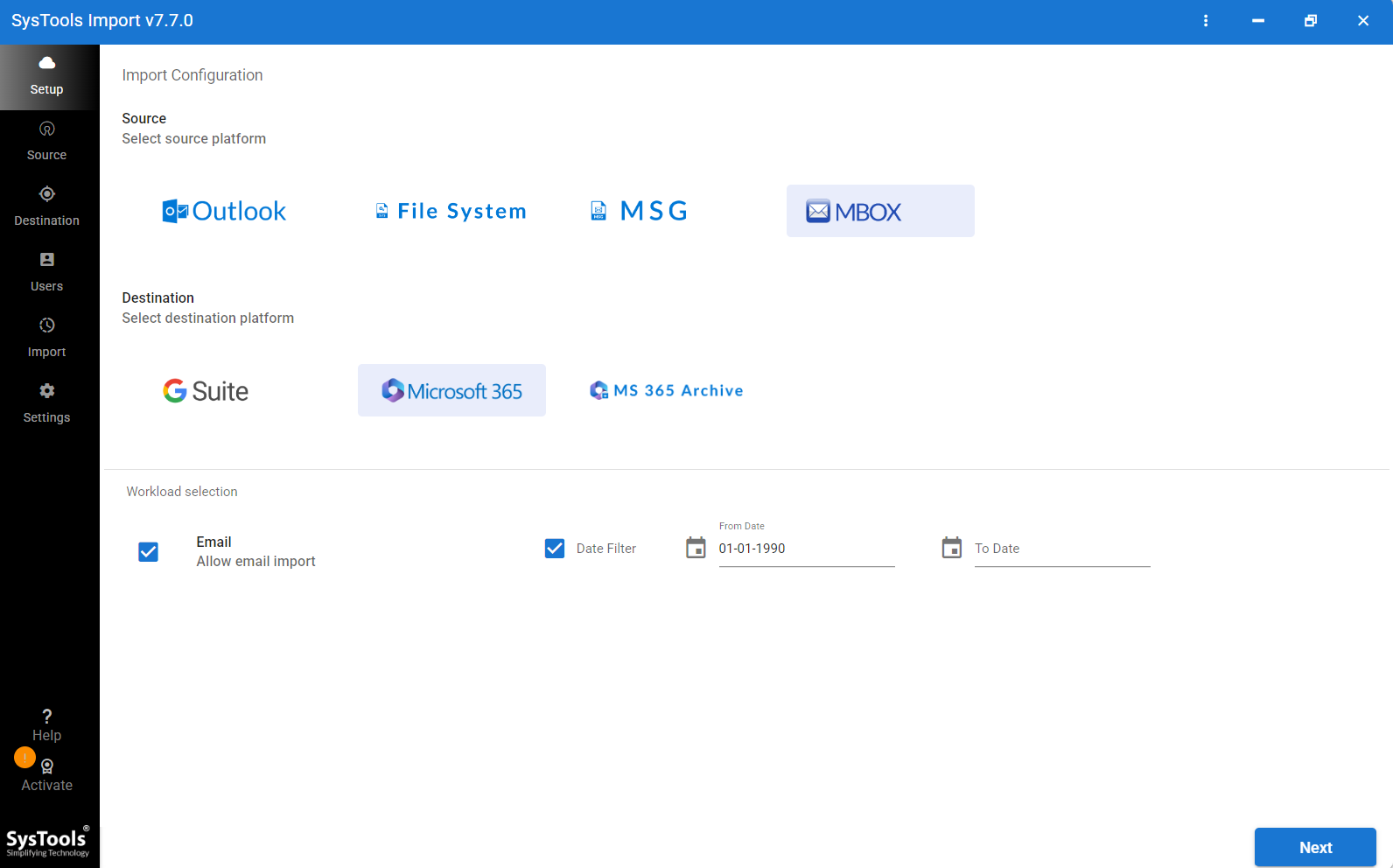
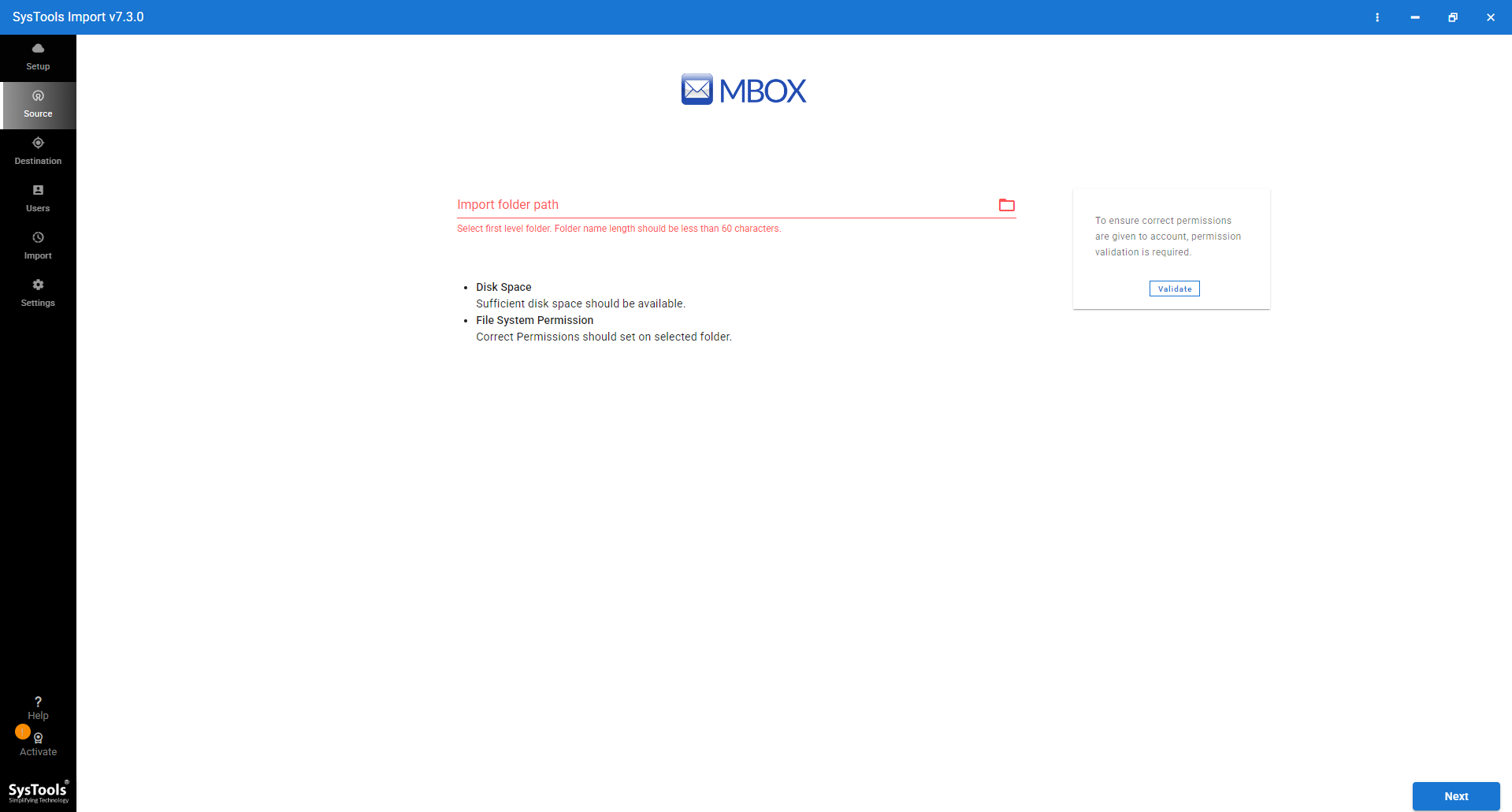
- Choose MBOX as the source, and Office 365 as the target for the Platforms and browse MBOX file.
- Enable Email Type from the Workload, and use a Start and End Date Filter.
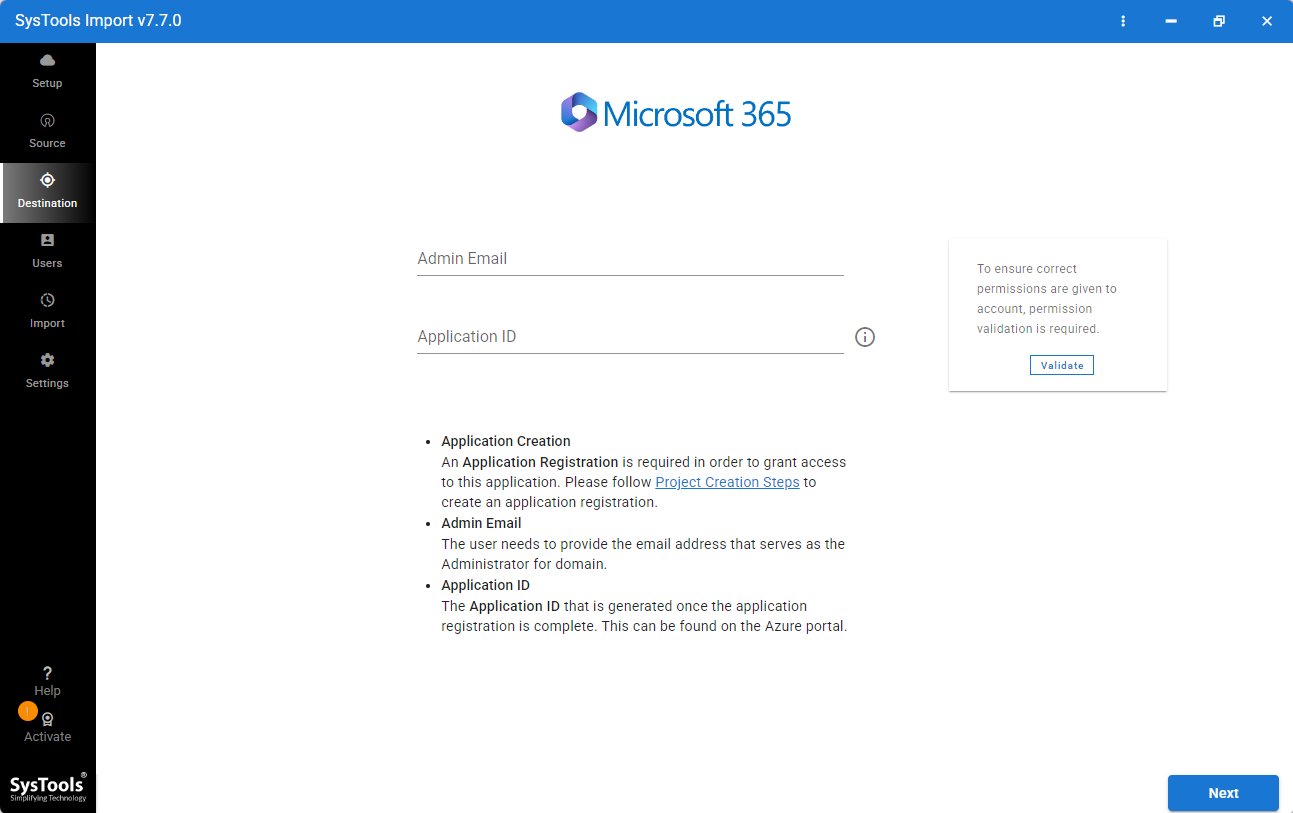
- Provide your Microsoft 365 login credentials for validation.
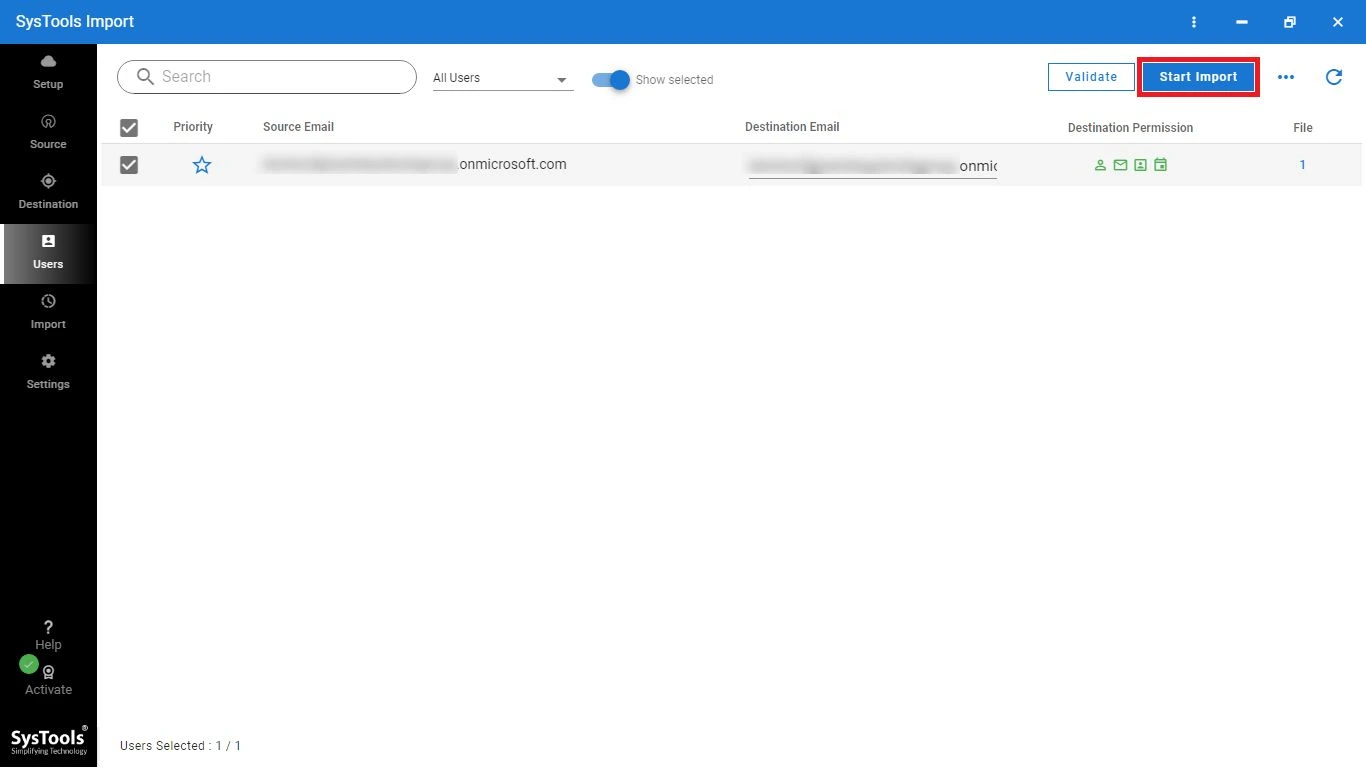
- Select the user accounts to import, and click Start Import.
Core Functionality/Features
- Bulk migrate Thunderbird, MBS, and MBX files
- Migrate from Thunderbird, and other email clients
- Retain the original folder structure
- Selective migration using date range filters
- Impersonate an admin account for multiple mailboxes at once
- Receive real-time progress reports during migration
- Retain email metadata (To, CC, BCC, Sent Date, etc.)
- All original message attachments will be migrated
- Ability to migrate an Thunderbird file that has been deleted or corrupted
- Compatible with any edition of Windows OS
Questions & Answers
Q: Will my attachments be migrated along with the emails?
If you use the IMAP Sync method, the process migrates your email attachments along with your emails, ensuring they are safely transferred to the cloud.
Q: Will I be able to migrate my contacts while migrating from Thunderbird to Office 365?
Typically, if you are syncing your folders to each other, you will only be able to sync email folders. You will need to export your Thunderbird Contacts as a CSV file and then separately import them into your Outlook Web Interface.
Q: Is it safe to migrate many mailboxes at once?
Yes, The IMAP Sync process will work well; however, if you are performing a lot of different manual synchronizations, you may run into connection drops while performing the migration of large data sets.
Q: Do I need to use specific software for the migration process?
Not necessarily; however, professional migration tools provide the ability to automate the entire migration process and give you much more consistent results through keeping folder metadata intact compared to manual methods.
Conclusion
Migrating from Thunderbird to Office 365 will provide many long-term advantages over having both programs running side-by-side. You can save yourself money using the manual method of converting smaller archives.
By following the instructions provided in this article, you’ll be able to successfully transfer your entire electronic communication system to an updated, cloud-based system professionally.