How to Import Emails into Microsoft 365? Best Guide
admin | Published: March 17, 2026 | Office 365
Importing EML files into Outlook 365 is possible using manual and EML to Office 365 Migration Tool. Both approaches are reliable and help you to complete the import process.
EML files are not natively compatible with Microsoft 365, users often face issues like failed import, missing attachments, broken email formatting and need to open or move files individually. It becomes frustrating when a user manages batch EML files and wants to import in a Microsoft 365 account.
Why Outlook 365 Doesn’t Support EML Files Directly?
- EML files store individual emails while Outlook 365 stores all its data in the cloud environment and allows users to access emails from any device.
- EML files follow MIME standard protocol where each file contains a single email with header, body, attachments and other data.
- Outlook 365 is compatible with PST/OST files which act as a structured database for managing emails, calendar, contacts, and other mailbox data.
- Single EML files can be opened, but Outlook 365 doesn’t support batch import EML files.
Method 1. How to Migrate EML files into Outlook 365 Manually?
Drag and drop allows users to open EML files in Outlook 365. But its only reliable for a single or few EML files.
- Open Outlook 365 on your computer.
- Navigate to the folder where you want to import the email.
- Locate the EML file on your computer.
- Drag and drop EML file into desired Outlook folder.
Drawbacks of Drag and Drop Method
- Time-consuming for large datasets.
- May not preserve metadata (read status, formatting or attachments).
- Drag and drop may fail in some Outlook versions.
Method 2. How to Migrate Emails to Microsoft 365 using New Outlook?
If you are using the New Outlook for Windows, then you can use its native import feature to easily import multiple EML files efficiently.
- Open New Outlook and click the Gear icon (Settings).
- Navigate to General and press on Import.
- Click on Start Import under import email from a folder.
- Browse the folder and select your EML files.
- Select the destination and folder.
- Click on Start Import.
Challenges When Importing using New Outlook
- May not handle extremely large batches of EML files.
- Folder structure may not be preserved.
- It will take lots of time depending on your connectivity or number of EML files imported.
- Requires the New Outlook interface, older versions don’t support this method.
Method 3. How to Import EML files to Office 365 using Outlook Classic?
If you have configured Outlook Classic then this approach is fully reliable, but it’s not workable for large-scale import.
- Navigate to EML file location and right-click on it.
- Right-click, select ‘Open With’, and choose Microsoft Outlook.
- Now, select Move and choose the folder where you want to import.
- Click on Move to easily import EML to Microsoft 365.
Drawbacks of using Outlook Classic Method
- You need to repeat the whole process for each EML file.
- Each file must be opened individually.
- Metadata or attachments may not transfer or partial import.
Alternative Method to Migrate Emails to Microsoft 365
If you want to migrate a batch number of EML files with full accuracy, then professionals always recommend the Office 365 Import Tool, as it is fully tested and can migrate any number of EML files, without facing any size limitations. To use the tool, download it and follow the step-by-step instructions below:
- Download and launch EML to Microsoft 365 Migration Tool.
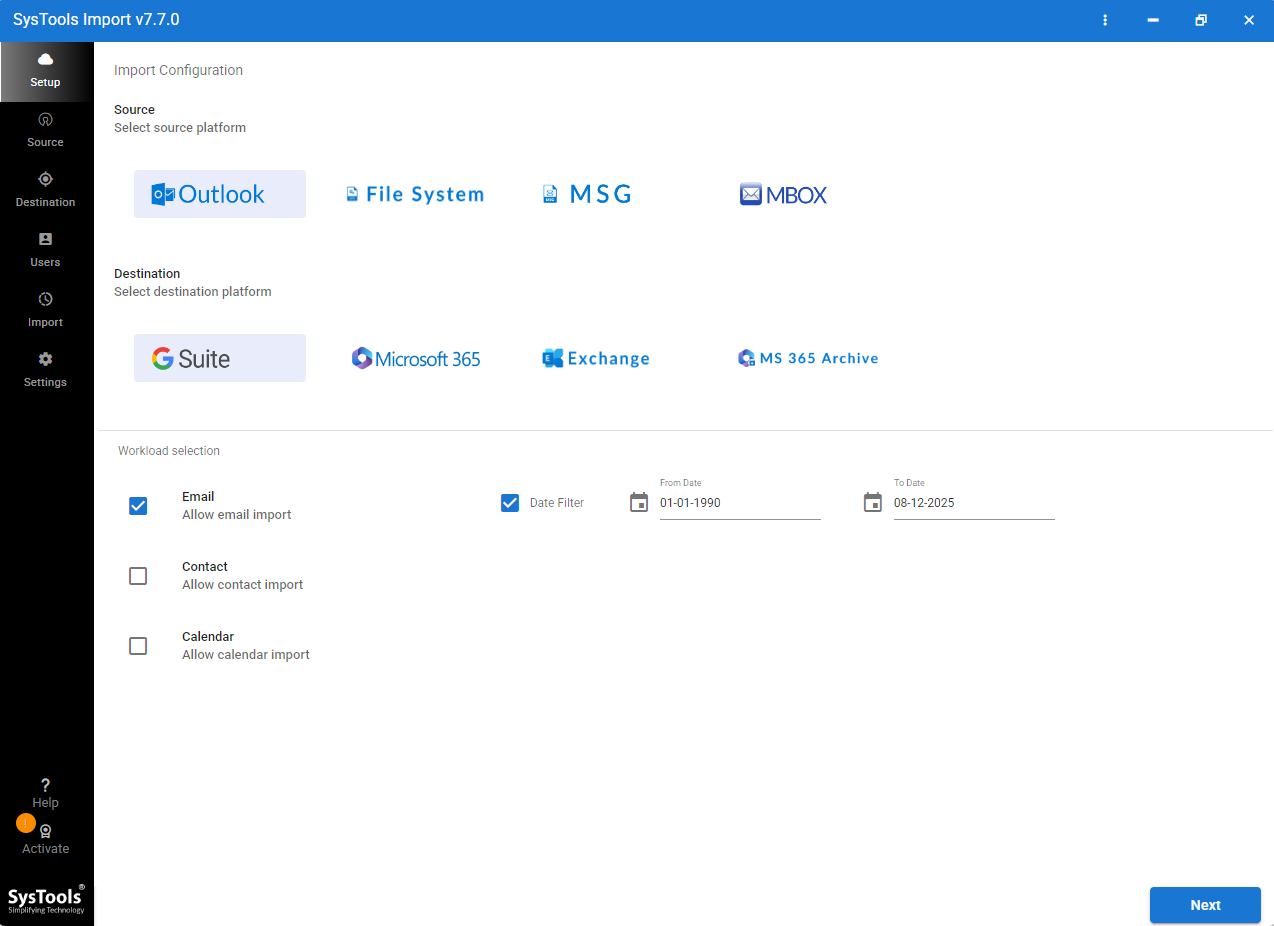
- Choose file system as source and Microsoft 365 as destination.
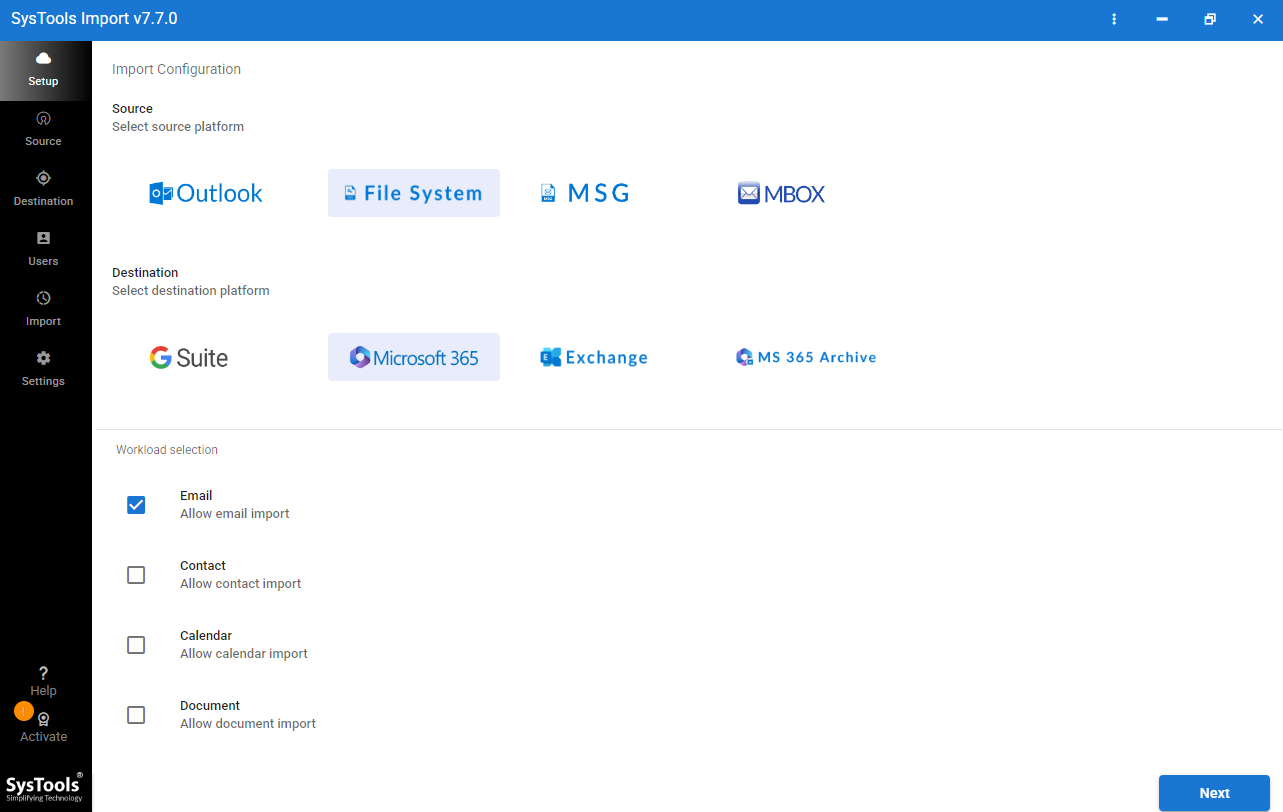
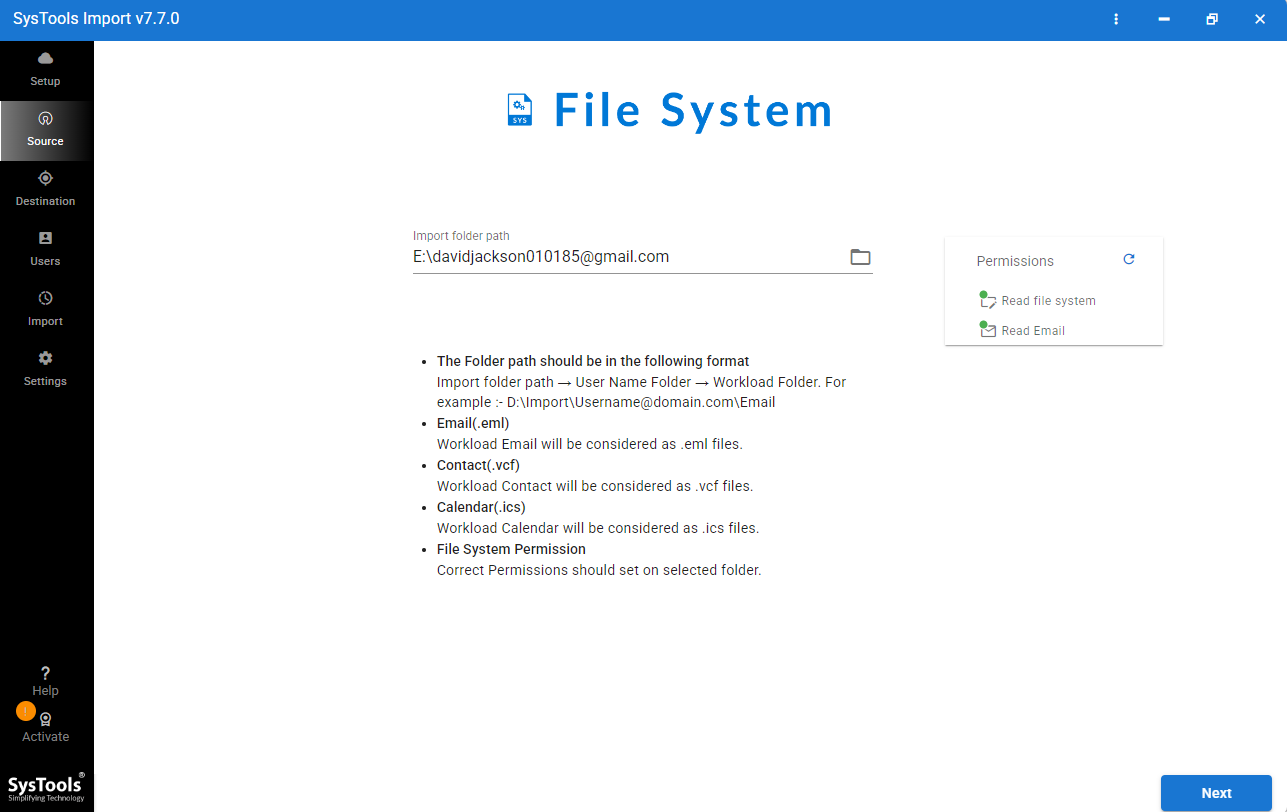
- Browse and select the EML files you want to import.
- Enter Admin email and application ID and validate it.
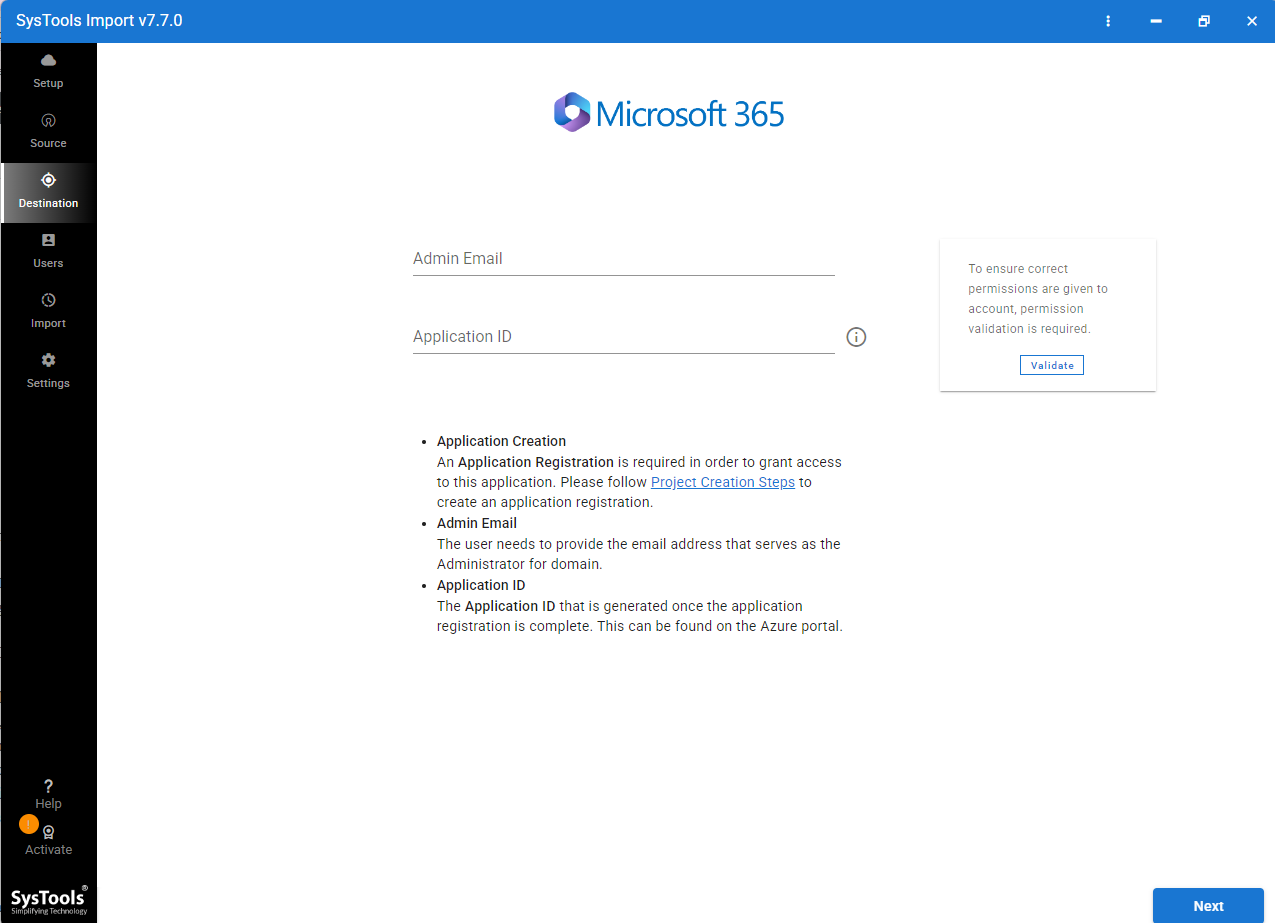
- Click on Fetch User and select the target user mailbox.
- Click on Settings to configure concurrent settings as needed and click Next to start importing EML files in your Microsoft 365 account.
Advantages of EML to Microsoft 365 Migration Tool
- This software allows importing hundreds of thousands of EML files at once. It fully stands on your expectation whether you are migrating a single mailbox or entire organization emails.
- Every attribute, attachments, read/unread status and folder hierarchy will be preserved.
- With concurrent features, you can import multiple mailboxes or batches of EML files without any limitations.
- This tool is specially designed to overcome errors, and support Advanced validation to check all selected data has been successfully imported without any data loss.
- This approach is perfectly reliable for IT Teams, businesses and organizations managing large-scale emails data. It requires compliance, accuracy and accountability throughout the process and importer is specially designed for these.
Common Questions
Will my email attachments be preserved during the EML import?
Manually drag and drop usually keep attachments, but files over 25 MB often fail to import. EML to Microsoft 365 Migration Tool fully reliable and keep attachments preserved of any size and attached correctly with migrated emails without file corruption.
Is there a limit to how many EML files I can import at once?
Manual dragging is limited to small batches (under 50) to avoid app crashes. The New Outlook Tool handles hundreds while an EML to Microsoft 365 Importer has no limit, allowing you to process multiple files and multiple mailboxes at one shot.
Do I need to be a Global Admin to use a Migration Tool?
For your personal mailbox, your regular login is enough. But if you want to move all organization EML files then you require Global Admin rights and Application ID to provide the permissions to quality Microsoft 365 account for import.
Final Thoughts
Importing EML files to Microsoft 365 requires technical expertise if you want to perform it manually. But manual approach like drag and drop and Outlook import feature is not reliable for batch import. For bulk migration and required maintained accuracy then choose experts first choice EML to Microsoft 365 Migration Tool is fully reliable to eliminate the risk of data loss, preserve original timestamps, and fully reliable for cloud migration. Manual approaches are reliable for few EML files import, while the migration tool is fully ideal for organizations, businesses and IT Teams.