How to Import PST Contacts to Office 365 (Without Data Loss)?
admin | Published: March 14, 2026 | Data Migration
When an organization transitions to Office 365, large quantities of information may be transferred (including contacts). Years of customer’s information, vendors and internal communications are represented by their contacts (PST), which are all to be stored in a cloud environment securely as they are. However, importing PST contacts into Office 365 isn’t as simple as it seems. The native Microsoft Tools used for moving large quantities of data are slow and require Technical Skill to handle large PST files. If you try to import large PST files using the Outlook Import/Export Wizard, it can crash during import; using Microsoft 365 Network Upload requires advanced expertise in using PowerShell, Azure Storage & SAS URLs. Additionally, when importing PST contacts, your migration settings can create duplicate contacts in user mailboxes and/or conflict with the Global Address List (GAL).
Understanding the Challenges of PST Contacts Migration
PST files contain contact information including first name, last name, phone number, email address and other fields. During migration, you need to migrate all data into the correct field to keep your contacts organized properly in the Microsoft 365 environment. The Migration process you need to perform it carefully, because a single wrong step can create duplicates and also can import Outlook contacts into an existing mailbox, as you need to configure it to not import duplicates, merge or skip as you need. Without proper configuration, it can leave your contact data unorganized and also create complications to filter specific contacts. The complexity increases when users need to migrate contacts for an entire organization. A single mailbox migration typically involves contacts required to import in one account, while enterprises often migrate contacts from multiple accounts which requires careful handling as any wrong steps can take you to a partial import. Because of these issues, organizations often look for a reliable tool to easily migrate Outlook contacts to Microsoft 365 accounts with preserved accuracy and its original formatting.
Method 1: The Native Outlook Import/Export Wizard (Best for Single Users)
This approach is suitable for individual users or small size organizations, you can use Outlook Import/Export wizard as it allows you to migrate Outlook contacts to Microsoft 365.
- Open Microsoft Outlook and confirm that your Microsoft 365 account is configured and syncing in Outlook. The contacts you import will be stored in this mailbox and then it will auto sync with Microsoft 365.
- Open Outlook, Navigate to File and click on Open and Export.
- Select Import/Export and choose Import from another program or file and click Next.
- Choose Outlook data file (.PST) and click Next to continue.
- Choose the PST contacts file as stored on your system and click on Continue.
- Click on Do Not Import Duplicates and tap the Finish button.
- When import completes, Outlook will auto sync your contacts in your Microsoft 365 account.
Method 2: Microsoft 365 Network Upload (Best for IT Admins & Bulk Migrations)
This approach allows administrators to upload PST files to Microsoft Cloud Storage and import them into mailboxes:
- Generate a SAS URL from the Microsoft Purview Compliance Portal.
- Use the Azure AzCopy Tool to upload PST files to Azure Blob Storage.
- Create a CSV file to specify which mailbox will receive the contacts.
- Create the Import Job and choose the contacts folder as you want to import in Microsoft 365 account.
Method 3. How to Import PST Contacts to Microsoft 365 Using Automated Tool?
If you want to import quickly and are looking to migrate whole organization Outlook contacts then experts often recommend the Office 365 Import Tool. This software eliminates the complex configuration and is fully reliable for all types of users and can migrate Outlook contacts of any size or any quantity without facing complex configuration such as Azure Storage or manual mapping.
- Download and launch PST Contacts to Microsoft 365 Migration Tool on your system.
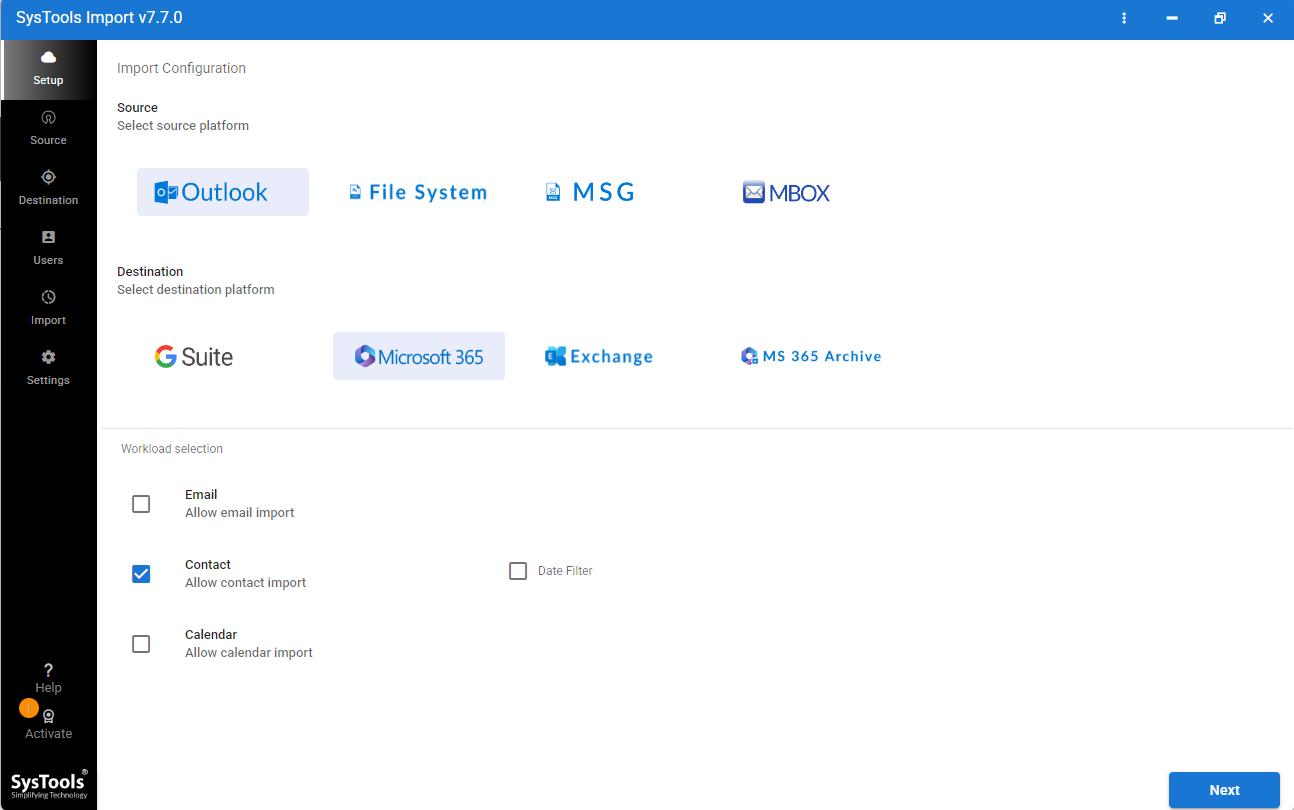
- Add the PST file that contains your contacts.
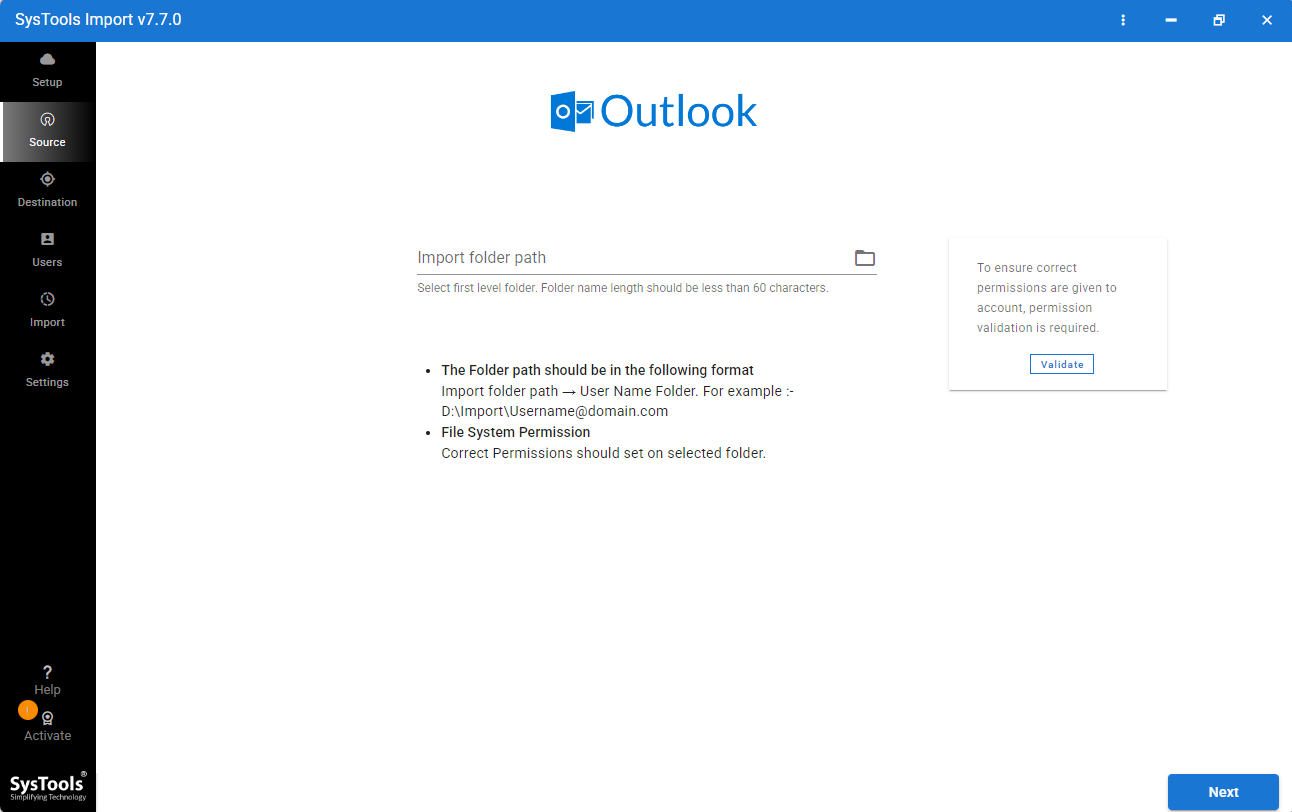
- Select the contact folder from the PST file.
- Enter your Microsoft 365 login credentials to connect the mailbox.
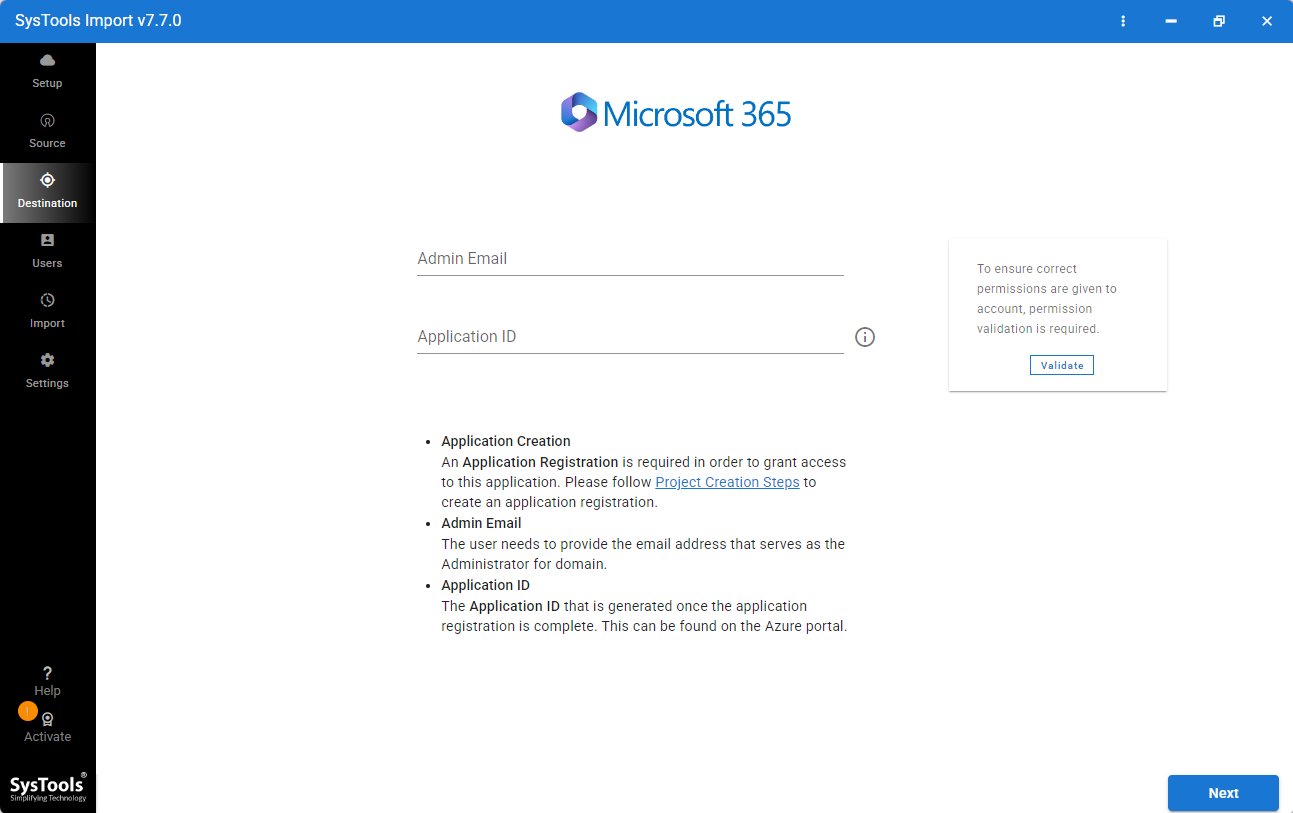
- Start the migration process to import PST contacts to Microsoft 365.
Key features of PST Contacts to Microsoft 365 Migration Tool
- It retains the data integrity of the PST contacts throughout the process.
- You can transfer large PST files to your Microsoft 365 account.
- Transfer unlimited PST contacts into Microsoft 365 account.
- Supports both UNICODE and ANSI PST files.
- It supports auto mapping to keep content in its original structure.
Frequently Asked Questions
Can I import contacts without installing desktop Outlook?
Yes, you can import contacts without installing Microsoft Outlook by using PST Contacts to Microsoft 365 Migration Tool. This tool allows you to upload Outlook contacts directly into a Microsoft 365 account.
How long does the Network Upload take for 50GB of contacts?
It depends on your connectivity and Microsoft processing time. Uploading 50 GB of PST file using AzureCopy or Outlook import/export feature will take several hours or even days while PST Contacts to Microsoft 365 Migration simplifies the job and import it easily, quickly, successfully with accurate user mapping and contacts fields.
Does importing a PST overwrite existing Office 365 contacts?
Not Always, It depends on you how duplicate contacts are handled. Options usually include replacing existing contacts, merge duplicates or skip duplicate entries. After making the correct configuration it can prevent duplicates.
Conclusion
After reading this post, we are now familiar that Import PST Contacts to Microsoft 365 can be challenging when managing multiple mailboxes. Manual approaches like Outlook import/export wizard work when you need to import a few Outlook contacts.While Network Upload is suitable for IT Administrator as it can be fully reliable for bulk migration. However, both approaches are time taking and may require technical expertise. For users who want a faster and more accurate solution, then Automated PST Contacts to Microsoft 365 Migration Tool can simplify the migration. It helps to migrate PST contacts while preserving contact attributes, reducing the risk of duplicates, and keeping data in its original fields.