How to Migrate Roundcube to Office 365 Without Data Loss?


Many users look to migrate Roundcube to Office 365 by moving emails and other mailbox data from Roundcube to Office 365. People go for Office 365 as it delivers better team collaboration, high security, more storage and easy access to applications like Outlook and Teams. However, the process can be difficult as it carries risk of data loss, compatibility problems and short interruptions during the process.
In this guide, we will know some reasons to migrate RoundCube to Office 365, then explore the manual method and its limitations, followed by the introduction of a professional tool that will simplify the entire process. By the end of this, users will know a suitable method to move their Roundcube emails.
Why Are Users Transferring Roundcube to Office 365?
Listed below are some reasons why users are moving from Roundcube to Office 365
- Office 365 comes with high-level features like MFA, encryption and threat protection to keep information safe.
- From one cloud platform, users can use Microsoft apps like Outlook, Word, Excel, PowerPoint and SharePoint.
- Office 365 uses Exchange Online, providing more storage, reliable email, shared mailboxes, calendars and organized email management.
- OneDrive allows users to store and share files safely and Teams helps you chat, meet and collaborate.
- Microsoft 365 uses AI to summarize emails, help with writing, recap meetings, improve search & productivity.
Manual Method to Migrate Roundcube to Office 365
Steps to transfer Roundcube to Office 365 Using IMAP
- Firstly, enable IMAP in your Roundcube account & save the server details.
- Now, using IMAP, open Outlook and add your Roundcube account.
- Users need to add Office 365 to Outlook & allow both mailboxes to update together.
- Drag & drop emails or folders from Roundcube to Office 365.
- Finally, sign in to Office 365 & check all emails to move Roundcube to Office 365.
Limitations of Manual Method
- This manual method is only suitable for small mailbox migrations.
- Using this manual approach, users only transfer emails.
- By using this manual method, you can not process your bulk data.
- This manual workaround does not support data, like contacts & calendars.
- Migration of Roundcube emails via use of manual methods is time-consuming.
- This process becomes risky if sync fails during migration of Roundcube data.
- To use these steps, users must have an installed & running account of Outlook.
- So, these are the loopholes of manual approaches that users might face while using this for free migration.
Professional Way to Migrate Roundcube to Office 365
As discussed, the manual method works for basic migration. For bulk migration, users can try Office 365 Import Tool, which is a dedicated solution that allows users to smoothly migrate Roundcube to Office 365. The tool securely transfers Roundcube email to Office 365. This is because users do not need any other application to migrate Roundcube emails. Secondly, it is also compatible with the latest Windows OS. It keeps email properties, folder hierarchy & data integrity in their original form.
Quick Steps of Automatic Solution via Bridge Method
In this section, we are using the Thunderbird bridge method to take out MBOX files, because Roundcube has stopped direct export of MBOX files, users can only download ZIP files of messages for archiving purposes by selecting them.
Note: This automatic solution is divided into two parts, to use this automatic solution for bulk migration & to save your time, you need to follow both parts carefully.
Part 1: Account Configuration on Thunderbird
- Open Thunderbird on your computer.
- Click on Gear icon > choose account settings > click on add account.
- Select Mail account option > enter Name & email address, click “Continue.”
- Now set IMAP settings & press Continue to reach the password page.
- Lastly, enter the password to login to your RoundCube account.
- Done, wait to completely account configuration. After that, restart Thunderbird.
- Then, install ImportExportTools NG extensions on the Thunderbird application.
- Finally, let’s move to the next part to take out the MBOX file for migration of Roundcube to Office 365.
Part 2: Export MBOX to Office 365
- Right-click on Configured account > choose ImportExportTools NG > click on folder export (mbox) option.
- Hit the Flattened Subfolders option & set Destination Path.
- Now, click on “Select Folder.”
- Done, your MBOX file is saved to the targeted location.
- Open the mentioned tool on your computer PC.
- From the side panel, click “Setup” then select source as “MBOX.”
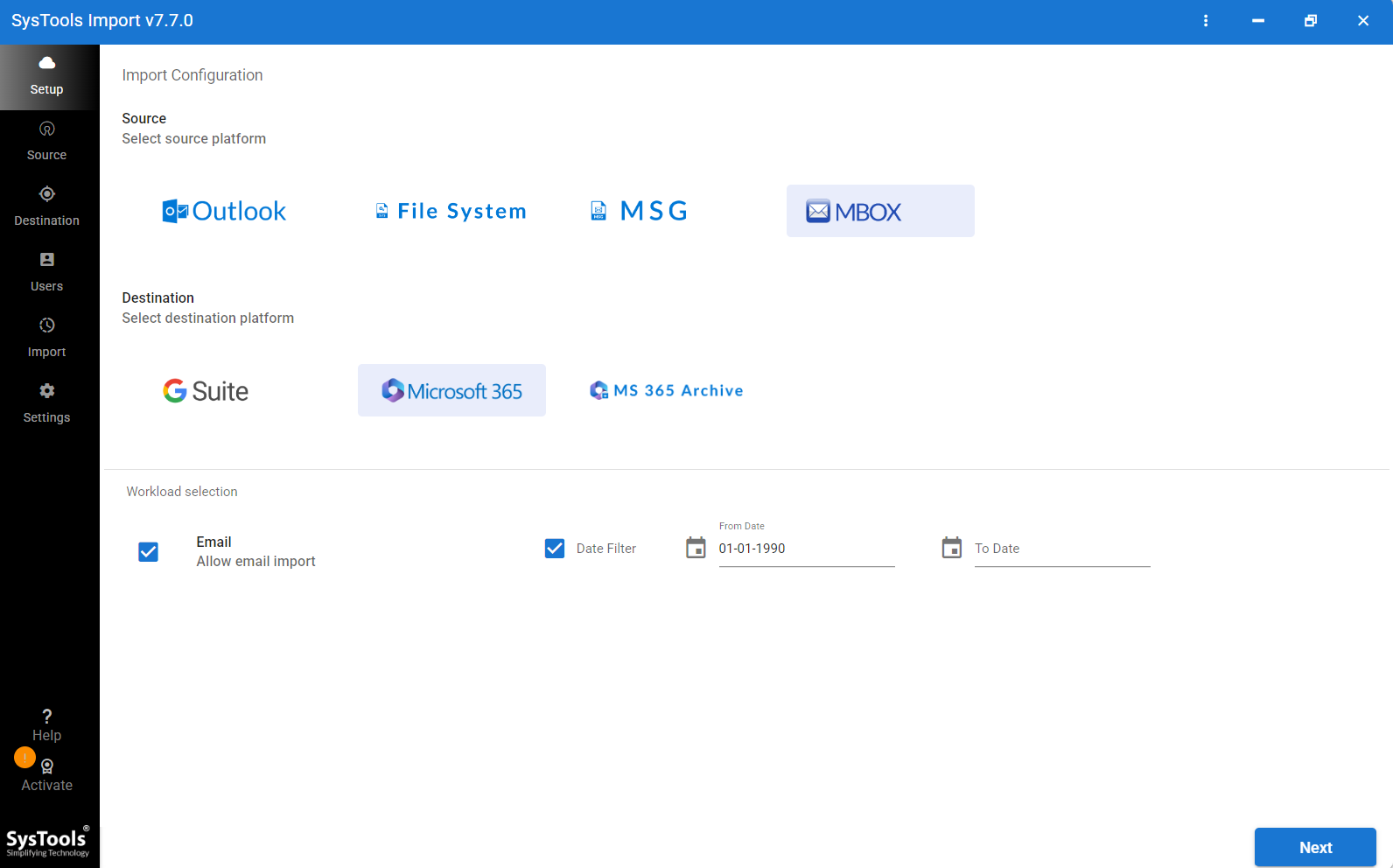
- Now, select the destination as “Microsoft 365”.
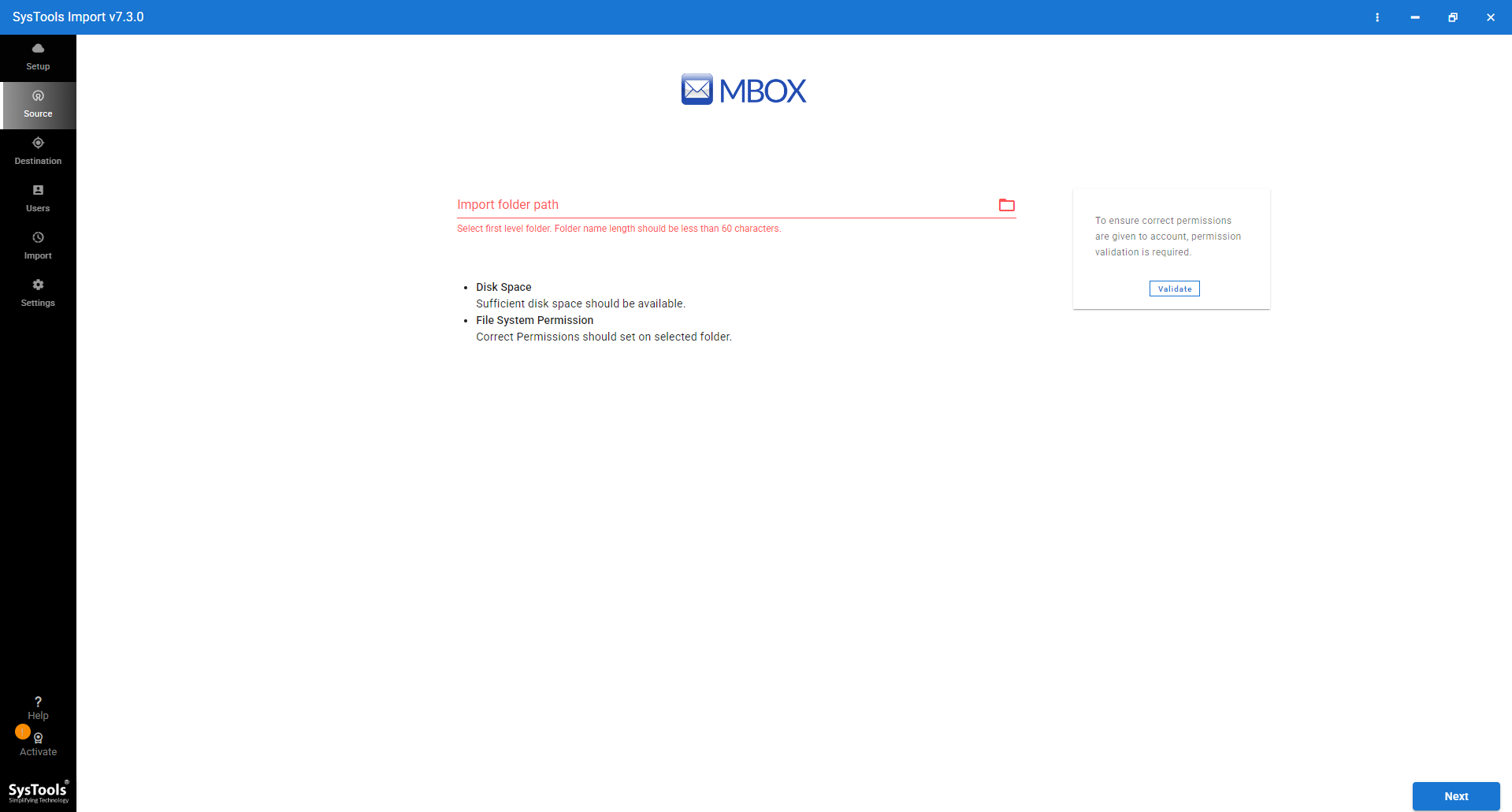
- Go to the source option from the side panel, click on the browse button to select the MBOX folder, & click Next.
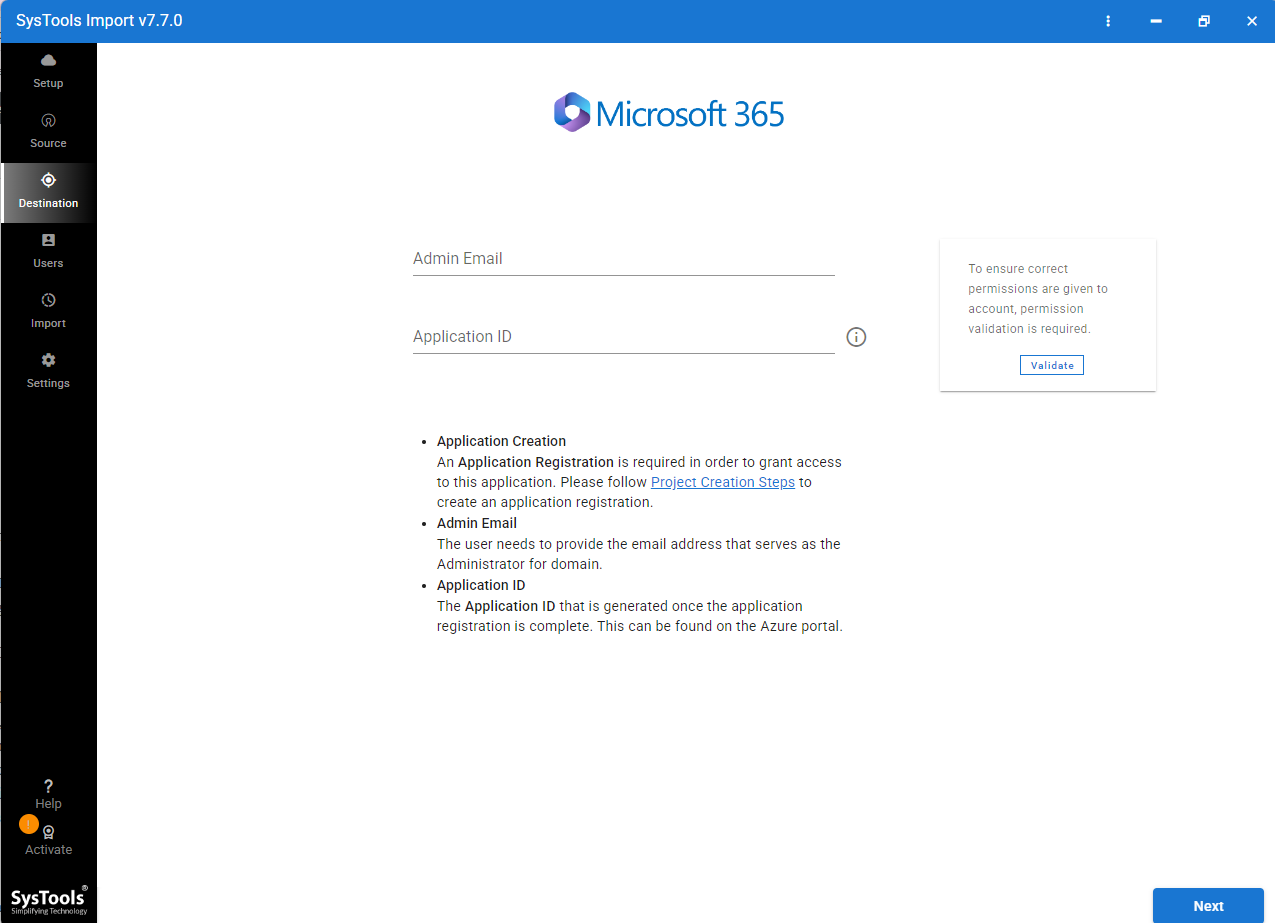
- Again, click on destination from the side panel and now enter the admin email with the application ID.
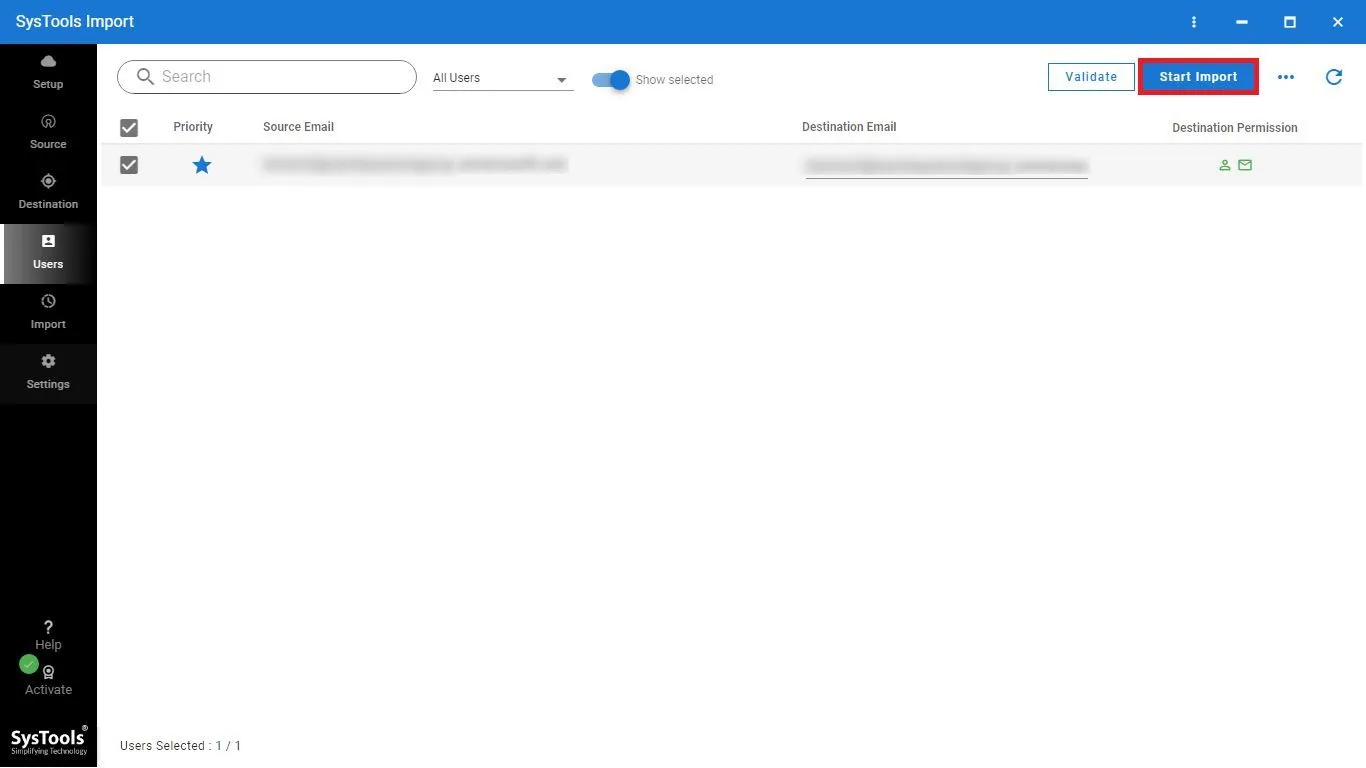
- Lastly, click the Next button to transfer Roundcube to Office 365.
Benefits of Automatic Solution
- Bulk Mailbox Import: Users can migrate multiple Roundcube emails to Office 365 mailboxes at same time. It makes the tool best for large-scale and enterprise migrations.
- Securely Import Office 365 Mailboxes: Users can easily import mailboxes from Microsoft Office 365 with safe & trustworthy process while maintaining complete data integrity.
- Data Migration: Using the software, you can migrate emails, contacts, calendars, and tasks from Office 365 with no data loss.
- Preserve Folder Structure: It keeps folder hierarchy in its original form throughout the import process for data organization & access.
Final Thoughts
Many business and home users want to migrate emails from Roundcube to Office 365. People migrate Roundcube to Office 365 to enjoy benefits of its advanced features like better security & cloud-based accessibility. In this guide, we learn about the manual method to move Roundcube to Office 365. This method is free & does not need any other software. Therefore, the professional solution is to download Roundcube emails in MBOX format & import resulting MBOX files in Office 365 account. Go for a method that suits your needs to transfer Roundcube emails to Microsoft Office 365.